
For Bybit Card Management
View Bybit Card Details
Freeze/Unfreeze Bybit Card
Unblock CVV
Enable or Disable Online Transactions and ATM Withdrawals
Reset Bybit Card PIN
Replace Bybit Card
Terminate Bybit Card
Add Apple Pay/Google Pay/Samsung Pay
Change Daily/Monthly/Yearly limit for Spending/ATM Withdrawal
Customize Design on Bybit Card
Check Bybit Card Program
For Bybit Card Management
How to view Bybit Card Details?
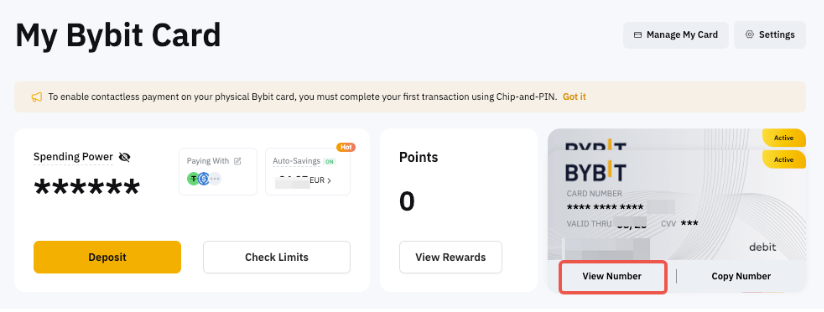
To view your Bybit Card details on the website, you may go to My Bybit Card and click on View Number. If you have more than one Bybit Card, simply click on the card display to switch cards.
How to freeze/unfreeze my Bybit Card?
Please go to the Card Management page. Click on Freeze and Confirm to temporarily disable your Bybit Card when you are not using it. Freezing your card will temporarily suspend all transactions to protect your account from unauthorized activities.
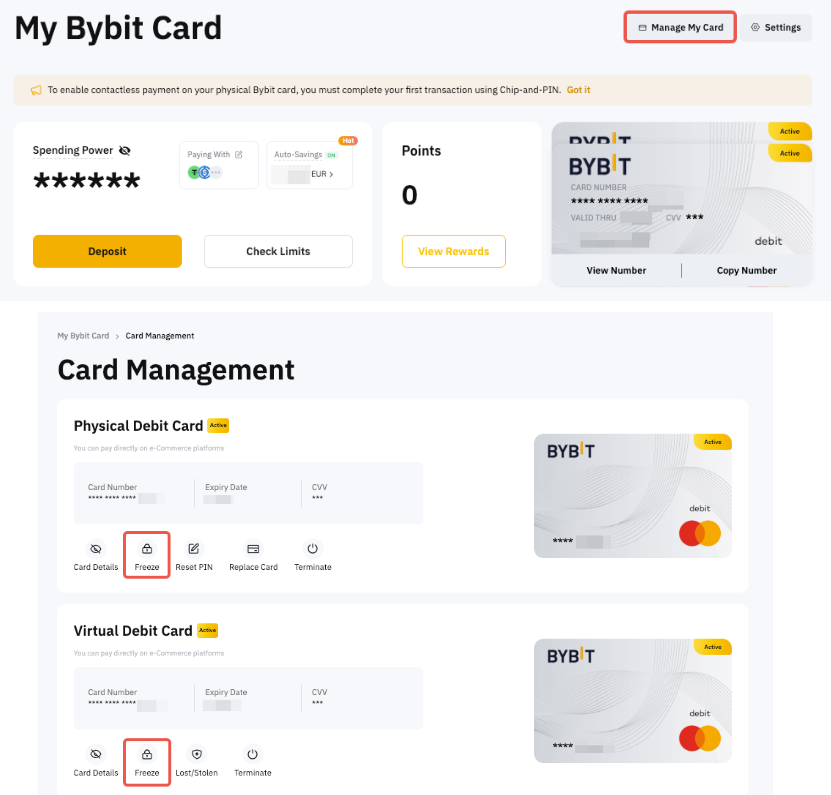
To reactivate your Bybit Card, click on Unfreeze and complete the security verification to confirm the action.

How to unblock CVV?
If you have exceeded the number of tries to enter your CVV, your card will be locked. You may unblock your CVV on the Card Management page, click on CVV Unblock and verify with security verification.

Note: Argentina Cards and Brazil Cards do not have CVV Unblock function as it has unlimited CVV attempts.
Enable or Disable Online Transactions and ATM Withdrawals
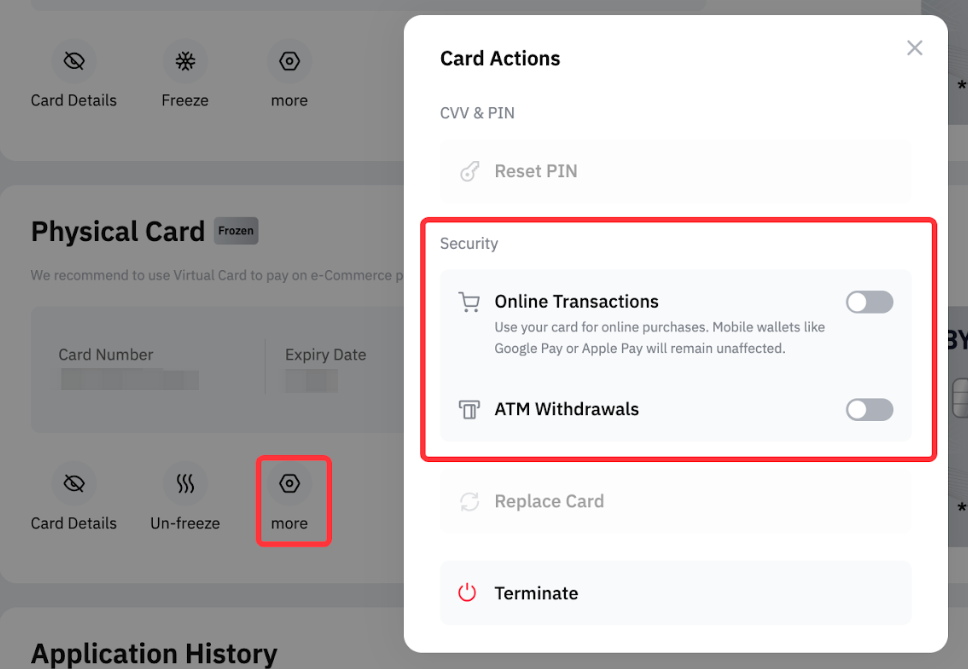
Users can manage online transactions and ATM withdrawals through More settings.
By disabling these options, transactions are blocked, providing an added layer of security for the card. For security reasons, 2FA verification is required when enabling these options, while disabling them does not require 2FA verification.
How to reset my Bybit Card PIN?
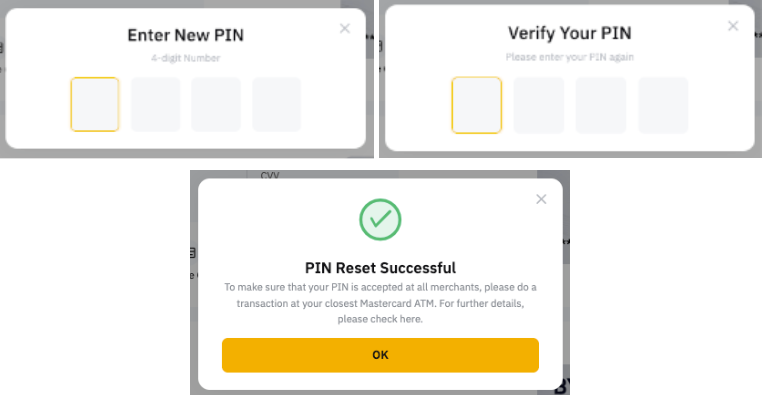
It is important to note that after resetting your PIN, you have to complete a transaction on an ATM first (a balance inquiry will do) with the newly changed PIN. Then, go to any retail merchant to complete a chip and PIN transaction with the new PIN. Subsequently, you can use Bybit Card for a contactless or new PIN.
On the Bybit website, please head to the Card Management page. Click on More → Reset PIN and complete security verification.
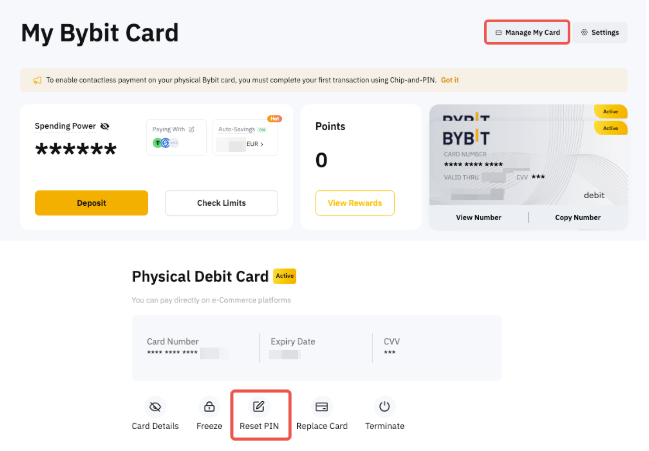
Next, enter a new PIN number and complete the second verification using your new PIN.
Notes:
— When resetting your PIN, users will be required to input a 6-digit code.
— Each card will have its own PIN which means that changing the PIN of the physical card will not change the PIN of the virtual card. To reset the PIN on your physical card, simply follow the instructions above.
How to replace my Bybit Physical Card?
Please head to the Card Management page and click on Replace Card.
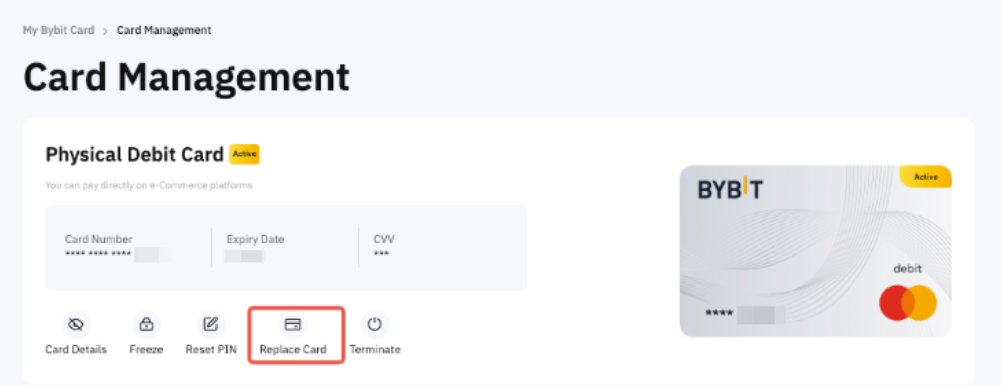
Then, select the reason you would like to replace your Bybit Physical Card:
- It’s lost or compromised (fraud, stolen, etc.)
Select this option when your Bybit Card has been compromised. Upon confirming the option, your physical Bybit Card will be terminated and you can apply for a new card.
- It’s damaged or doesn’t work
Select this option when your Physical Bybit Card is still in your possession but the card is broken or damaged. Upon confirming the option, we will issue a new Physical Bybit Card to your shipping address. After you receive and activate your new card, the old card will automatically be terminated.

How to terminate my Bybit Card?
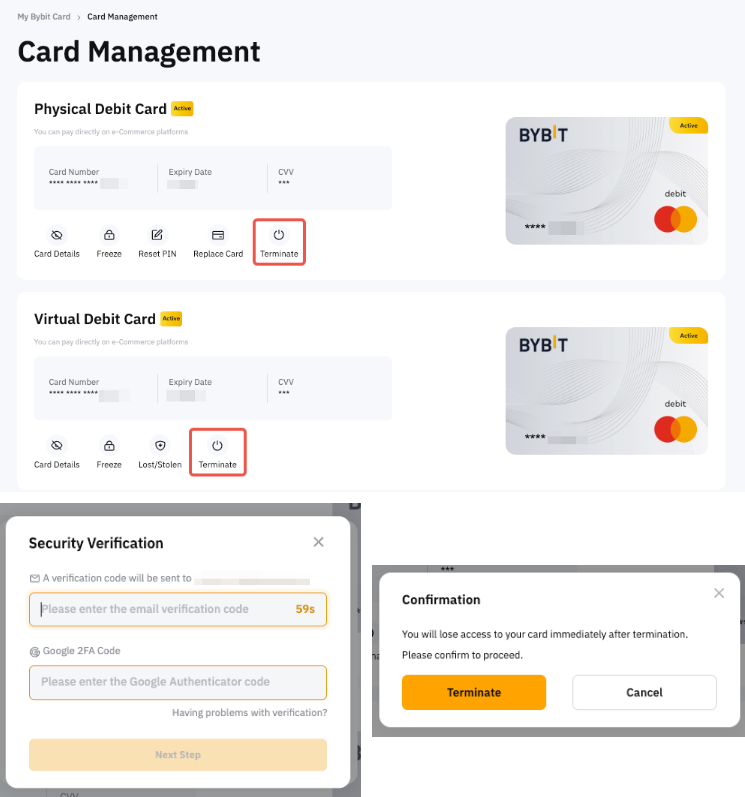
Please head to the Card Management page. Click on the Terminate button. Then, complete the security verification and click on Terminate if you wish to proceed.
How to add my Bybit Card to Apple Pay, Google Pay or Samsung Pay?
Adding your Bybit Card to Apple Pay, Google Pay, and Samsung Pay is now supported. Please note that availability may vary depending on the specific Bybit Card program. Google Pay and Apple Pay cannot be added using the website.
How to change my Daily/Monthly/Yearly Spending Limit or ATM Withdrawal Limit?
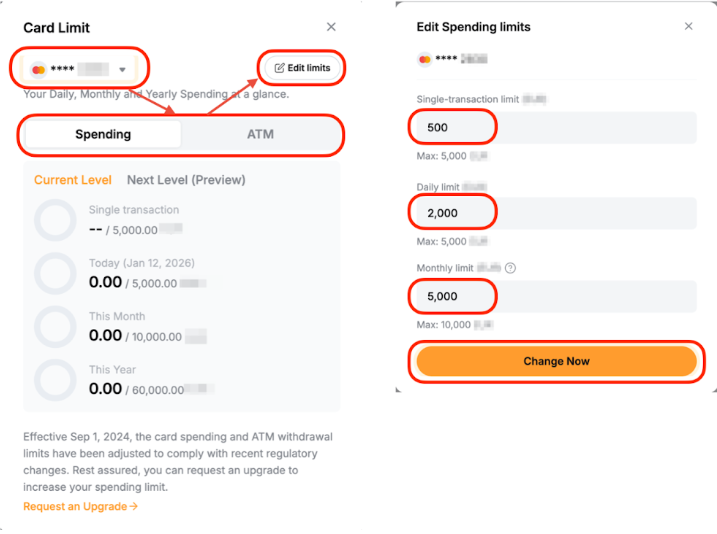
You may adjust your daily/monthly/yearly spending limit or ATM withdrawal limit within your current tier limit via the Card dashboard. Go to the Card Dashboard page and click Check Limits to view your spending and ATM limits.
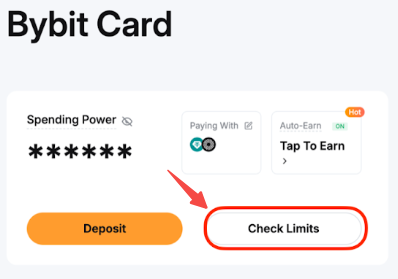
At the top, select the card and limit type you want to update: Spending or ATM. Click Edit Limit to modify your single transaction (if applicable)/daily/monthly limit and click Change Now to apply the changes.
How to Customize Design on Bybit Card?
Please head to the Card Management page, click on More, and select Card Design. You will be directed to a gallery of available virtual card designs. Browse through the selection, select your preferred design and click on Set.
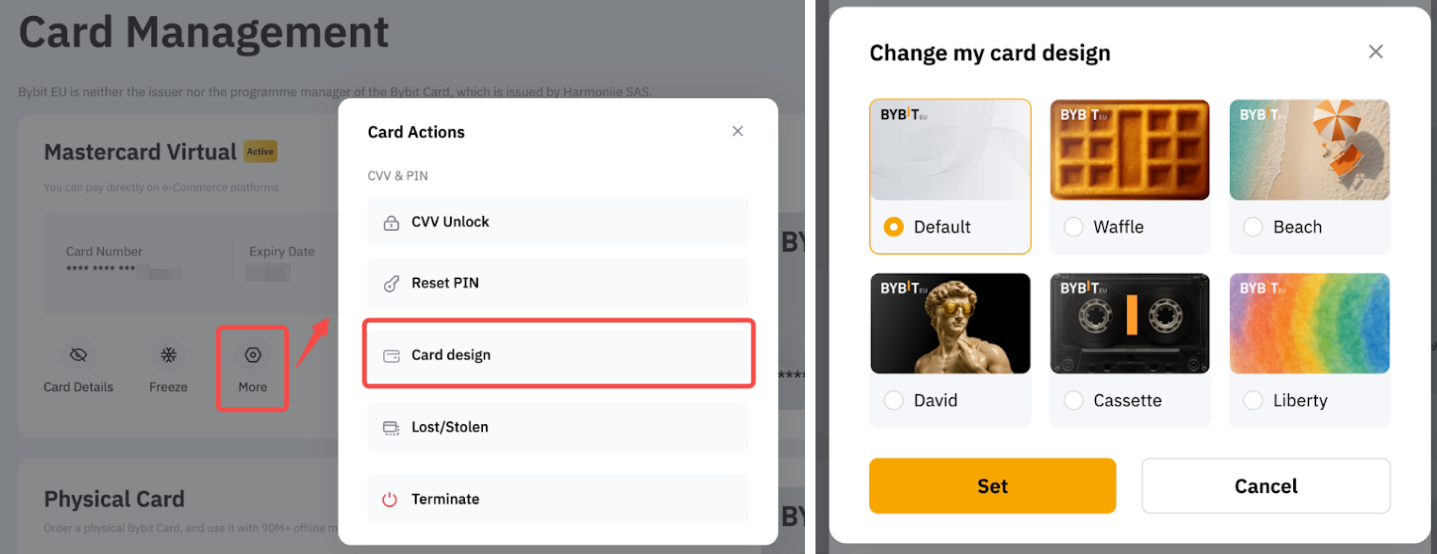
The selected design will be instantly applied to your virtual card, and it will also be reflected in your Apple Pay or Google Pay wallet.
How can I check which Bybit Card program I currently hold?
Once you have successfully applied for a Bybit Card, you can check your card program on the Bybit Card Dashboard page. Look at your Spending Power in fiat currency and the Card Type (Mastercard or Visa) to identify your program. For more details about each card program, please refer to the relevant FAQ for that program.
- Argentinian Users: FAQ — Bybit Card General Inquiries (Argentina)
- Brazil Users: FAQ - Bybit Card General Inquiries (Brazil)
- AIFC Users: FAQ - Bybit Card General Inquiries (AIFC)
- Asia Pacific Users: FAQ — Bybit Card General Inquiries (Asia Pacific)
- Mexico Users: FAQ — Bybit Card General Inquiries (Mexico)
For Bybit Card Settings
How to change my Bybit Card billing address?
Step 1: Go to the My Bybit Card page and click on Settings.
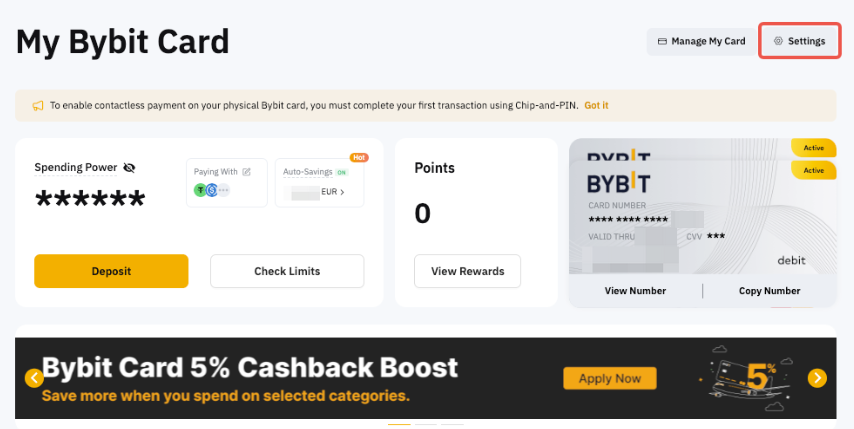
Step 2: After verifying your account with 2FA, click on Reset under Billing Address.

Step 3: Fill up your updated billing address, then click on Submit and enter the Google Authenticator code to confirm your action.
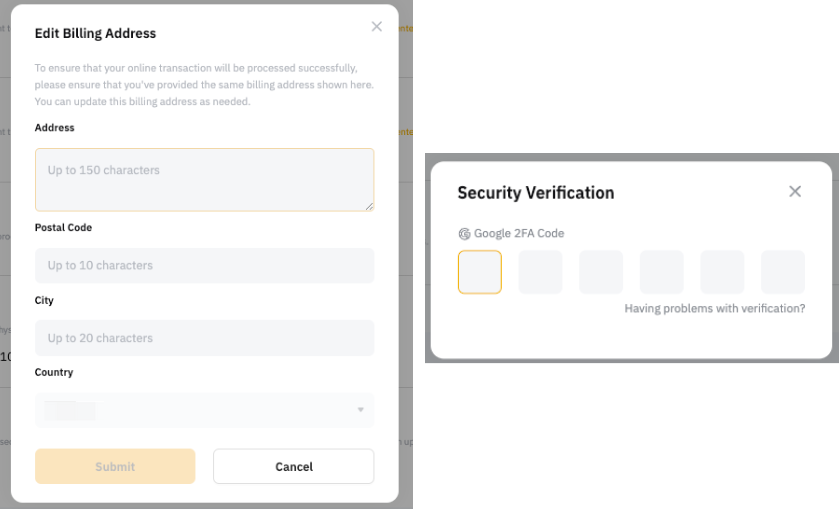
Note: To ensure that your online transaction are processed successfully, please verify that you've provided the same billing address shown here. You can update this billing address as needed.
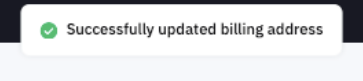
Congratulations! You have successfully updated your billing address.
How To Change The Name On My Bybit Virtual Card?
Go to My Bybit Card → Manage My Card and click on the Edit icon next to the cardholder name. Enter your new name and click on Submit.

Notes:
- Each virtual card allows 2 name modification attempts per lifetime.
- This feature is not available for Brazil Bybit Card Users.