Demo Trading is a simulated trading feature on Bybit that enables you to practice trading without risking real money. It replicates real-world market conditions using simulated assets, allowing you to familiarize yourself with the platform and test your trading strategies.
Currently, Demo Trading supports simulated trading for both Spot and Derivatives in Unified Trading Account (UTA).
Demo Trading Account Overview
How to Access and Exit Demo Trading Mode
How to Request Additional Assets
Demo Trading Account Overview
A Demo Account is automatically created and available for all Bybit users, and it does not require KYC Identity Verification to use. In addition, Demo Trading is supported on Subaccounts, although the demo account in your subaccount will be different from the one in your Main Account.
Demo Trading Interface
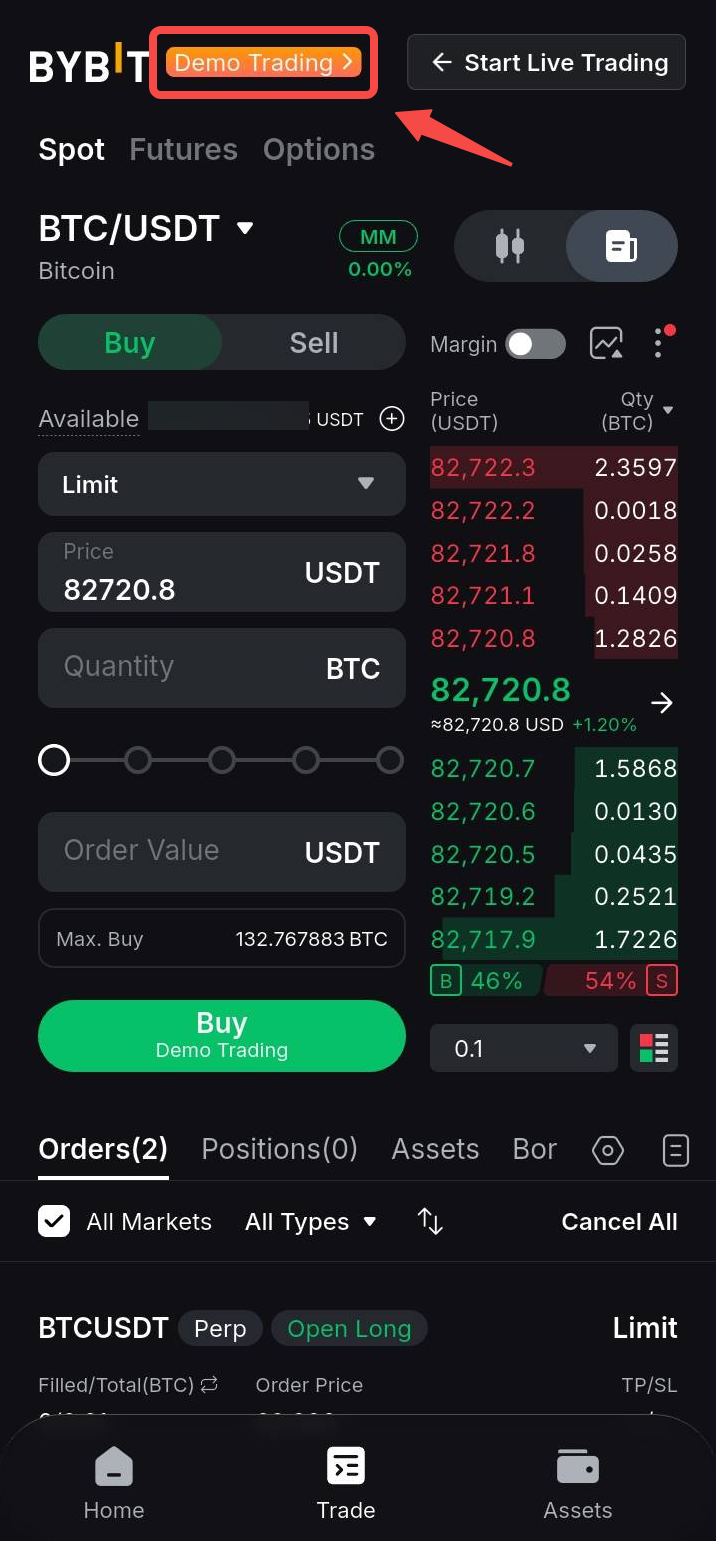
You can distinguish the Demo Trading page from the live trading page by the bright Demo Trading label at the top.
Difference Between a Demo Account and Testnet Account
A Demo Account operates within the main trading platform, offering a simulated environment that mimics real trading conditions. In contrast, a Testnet Account is an entirely separate platform used primarily for testing new features and updates before they're implemented on the main platform. Testnet Accounts may not always provide the most accurate representation of live trading conditions.
For more details, please refer to the following:
How to Access and Exit Demo Trading Mode
You can access and exit the Demo Trading mode by following the step-by-step guide below:
Access Demo Trading Mode
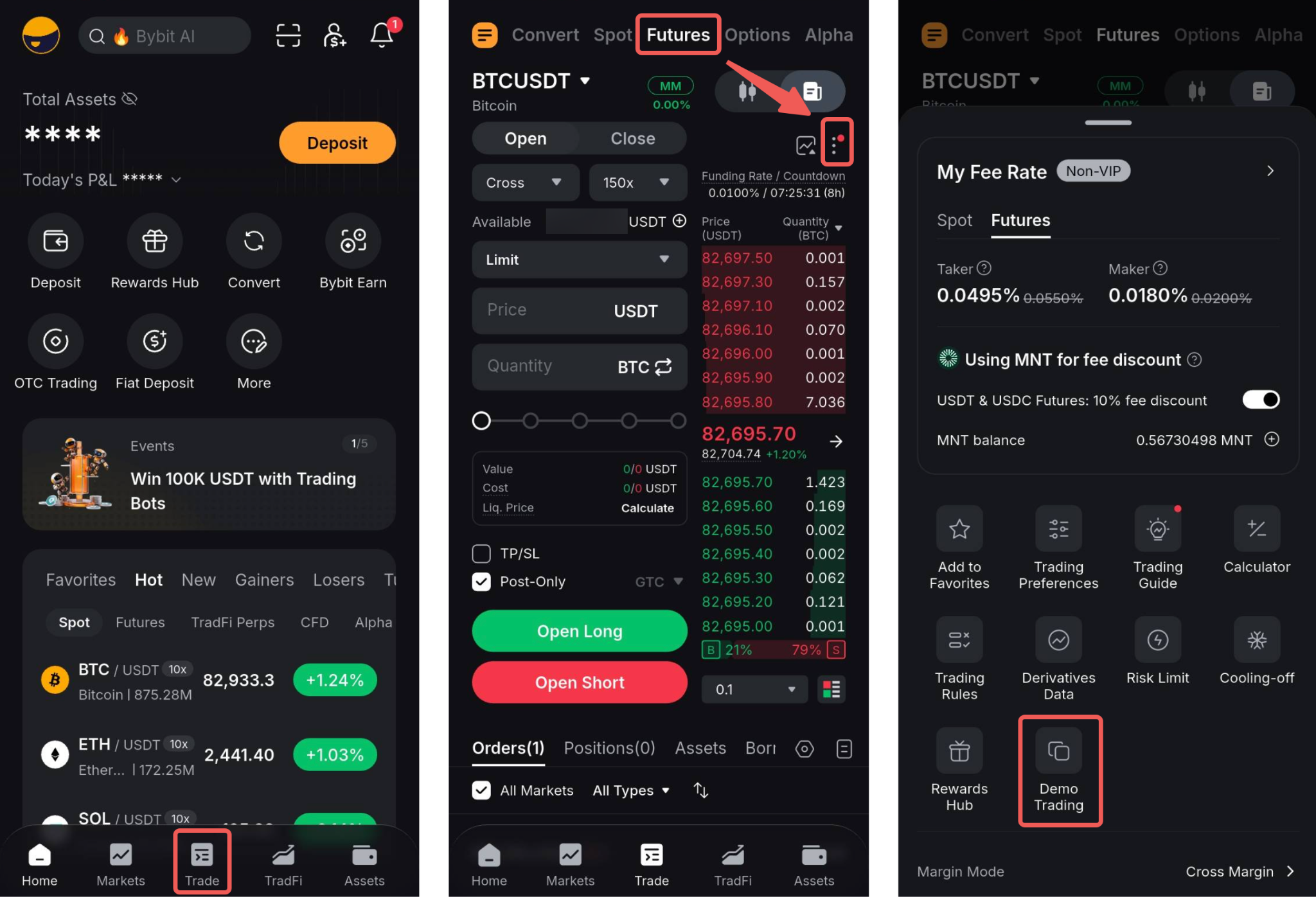
On the Bybit App homepage, go to Trade → Futures, then tap the Ellipsis icon above the Order Book and select Demo Trading.
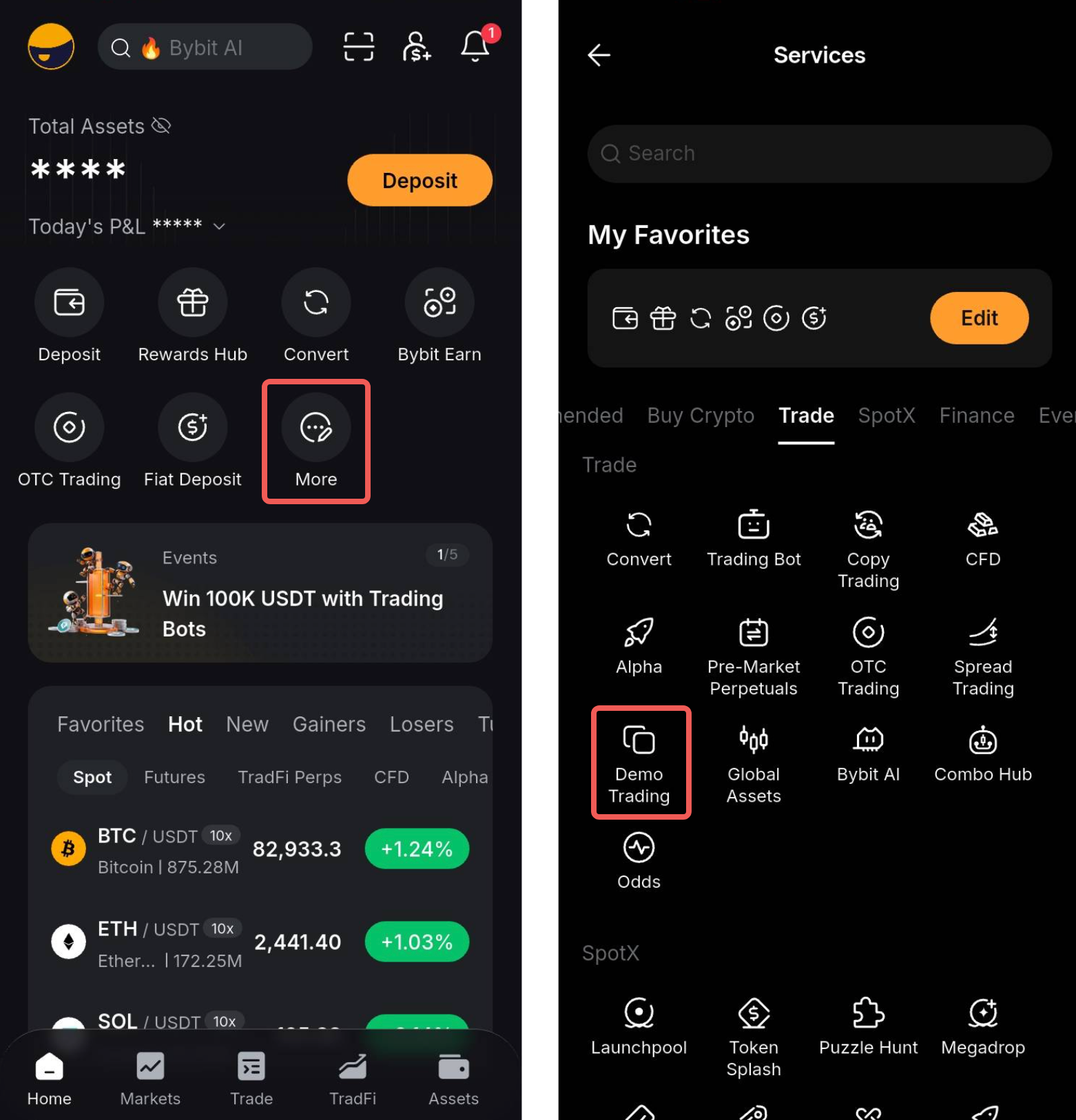
Alternatively, tap More and select Demo Trading under the Trade section.
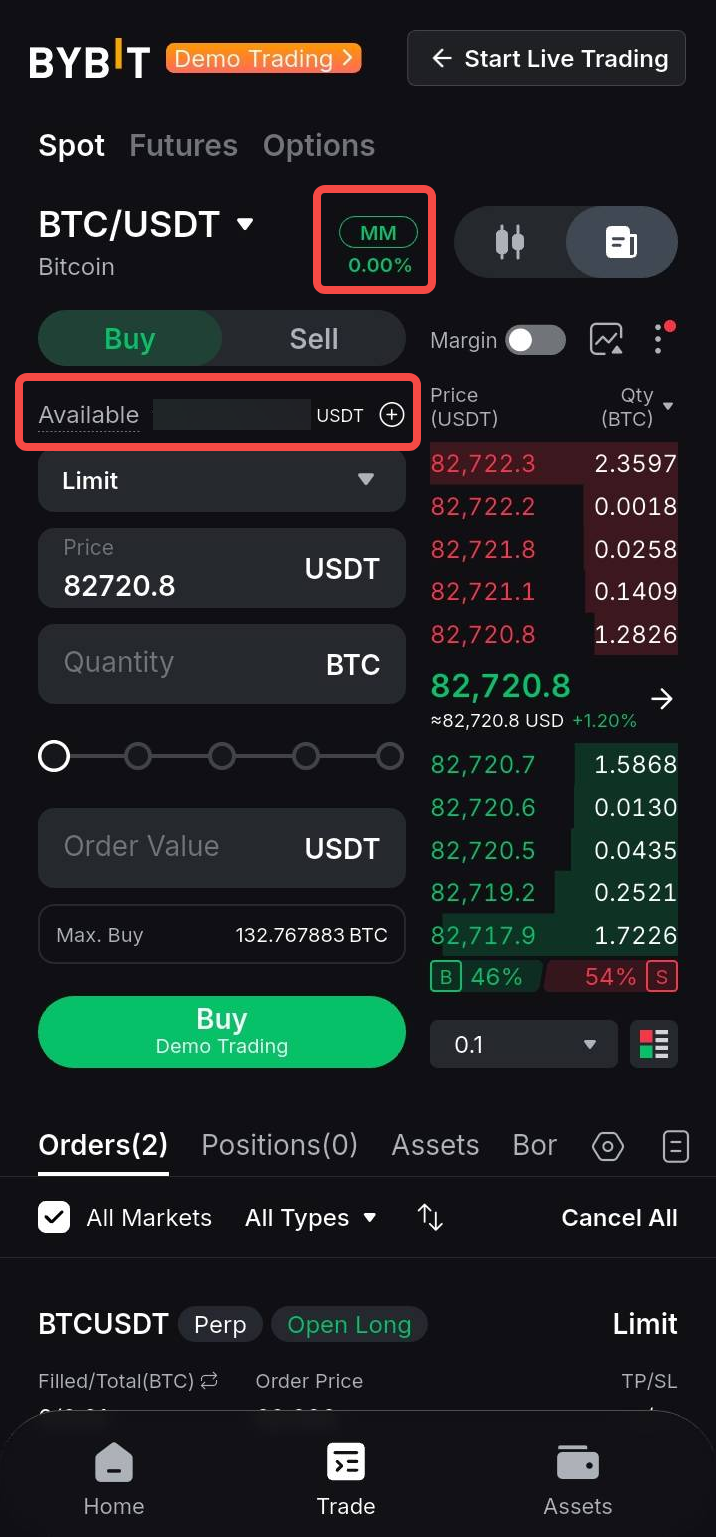
Upon initializing your Bybit Demo Account, you will automatically receive simulated assets of 50,000 USDT, 50,000 USDC, 1 BTC, and 1 ETH. No manual request for funds is required.
You can also view your trading margin indicators and your Available Balance in the order tab.
Exit Demo Trading Mode
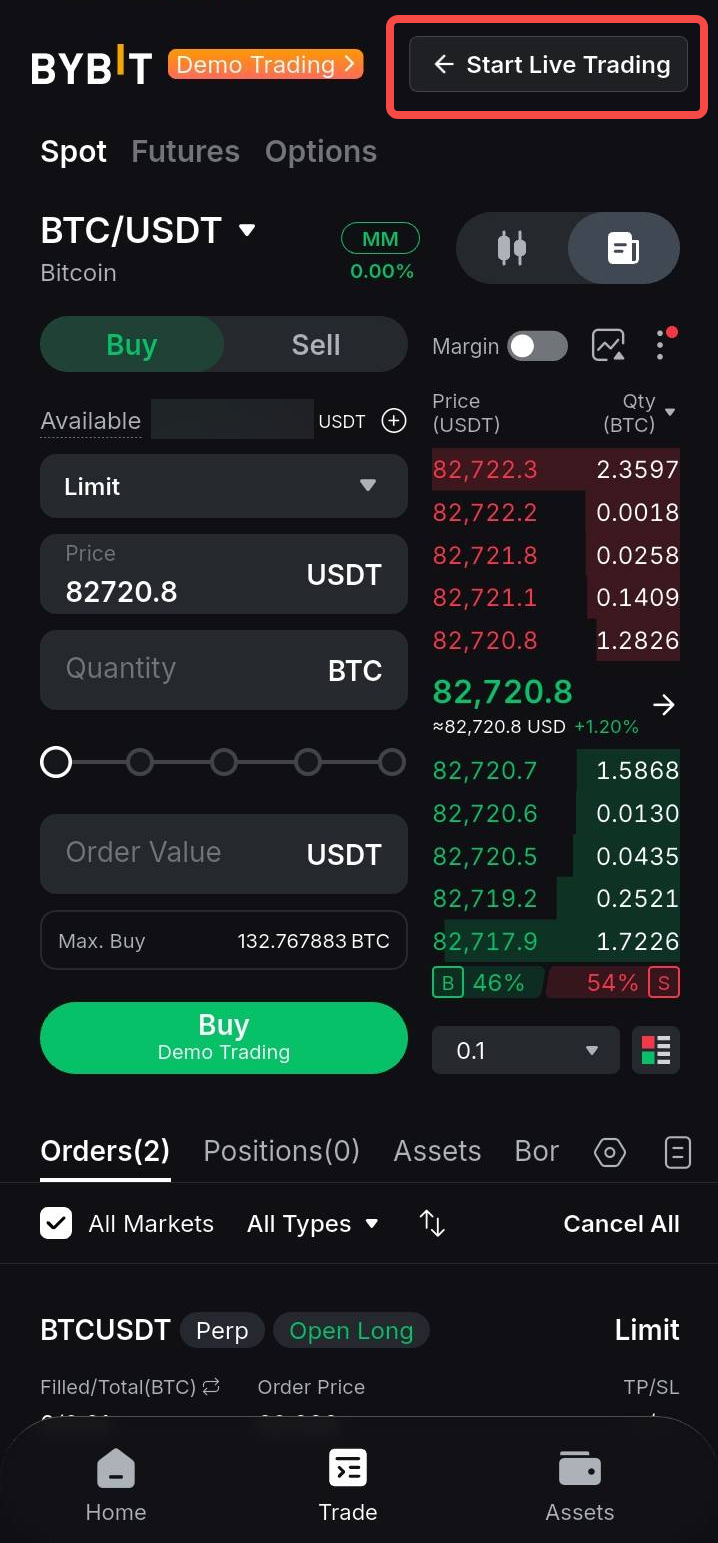
To exit the Demo Trading mode and return to your live trading account, simply tap Start Live Trading at the top of the page.
How to Request Additional Assets
You can adjust your demo funds via the Unified Trading Assets page. Please note, however, that you can only request demo funds in USDT, USDC, BTC, and ETH. If you wish to use other simulated assets, you can use Spot trading on the Demo Account to trade for your desired assets.
Adjust Demo Funds
To adjust your demo funds, tap Assets at the bottom navigation bar. Then, once you are on the Unified Trading Assets page, select Adjust Demo Funds.
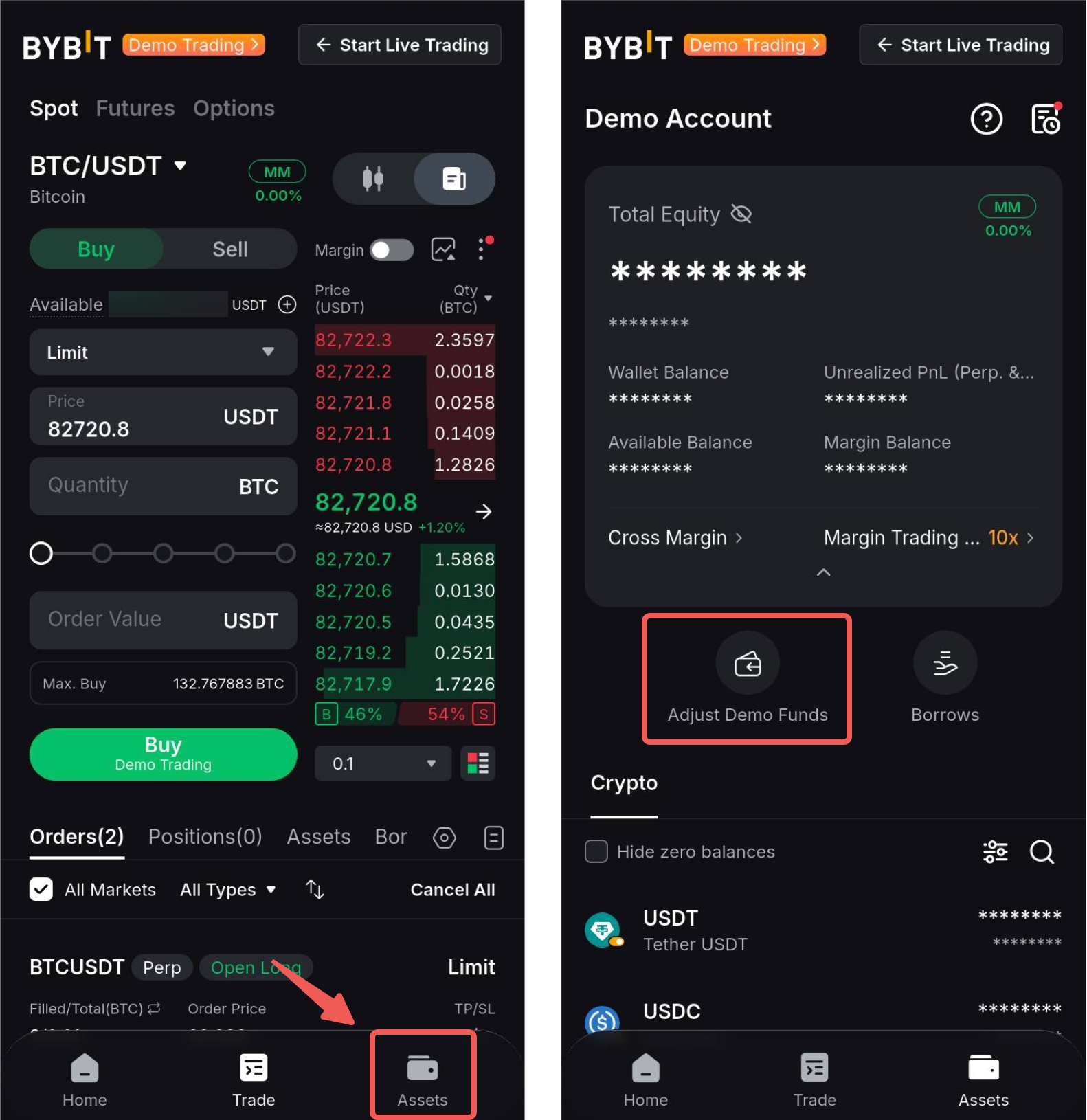
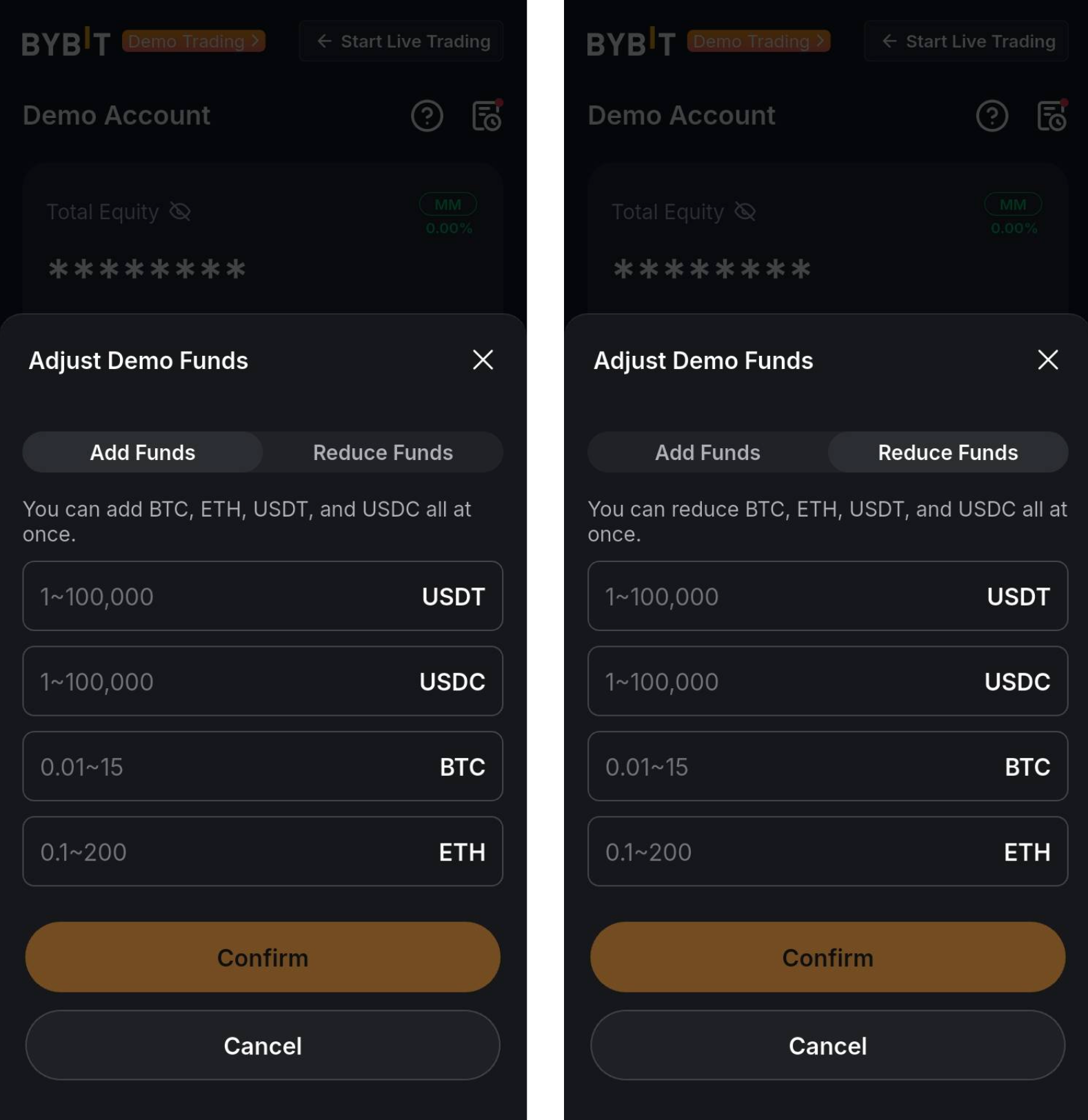
In the Adjust Demo Funds window, you may select Add Funds to increase the available simulated assets or Reduce Funds to reduce. Please note that you can only add or reduce the balance for each coin within the specified range and amount.