The guide below shows you a step-by-step guide on how to clear some of the major browser's cache and cookies, including Google Chrome, Firefox, Brave, Microsoft Edge Chromium, and Safari.
Google Chrome (Recommended browser on Bybit)
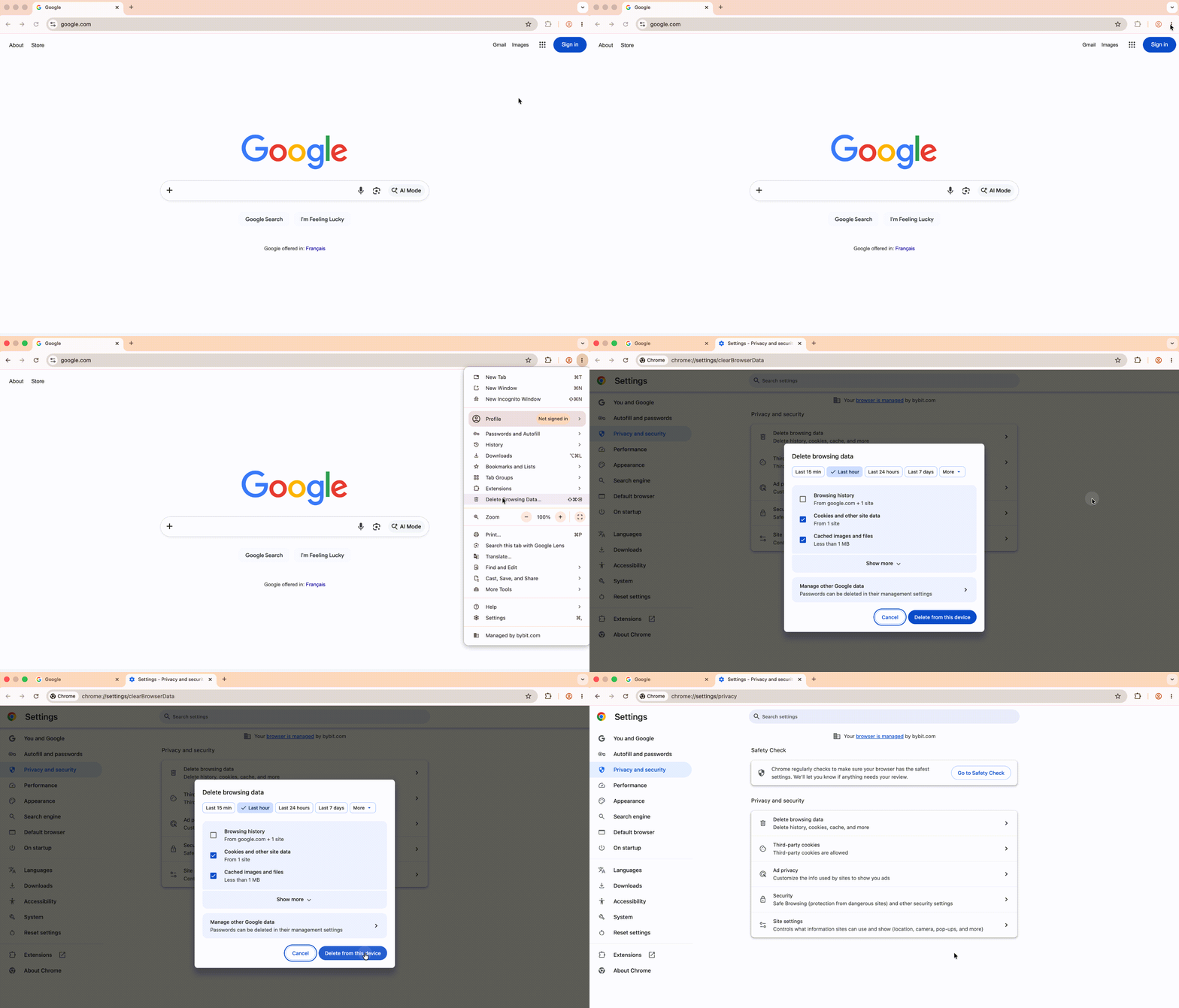
1. On your computer, open Chrome.
2. At the top right, click the ellipsis icon ︙.
3. Click Delete browsing data.
4. At the top, choose a time range. To delete everything, select All time.
5. Check the boxes next to Cookies and other site data and Cached images and files.
6. Click Delete from this device.
To prevent other websites’ cookies from being cleared — so that you will not need to log back into those accounts afterwards — please follow the troubleshooting steps below:
- Right-click anywhere on the Bybit website, select Inspect to open the Developer Tools
- Go to the Application tab
- On the left panel,
- Expand Storage → Local Storage and click https://www.bybit.com
- Click the 🚫 Clear all button (the circle with a line icon at the top right of the storage panel)
- Refresh the page

Firefox (Recommended browser on Bybit)
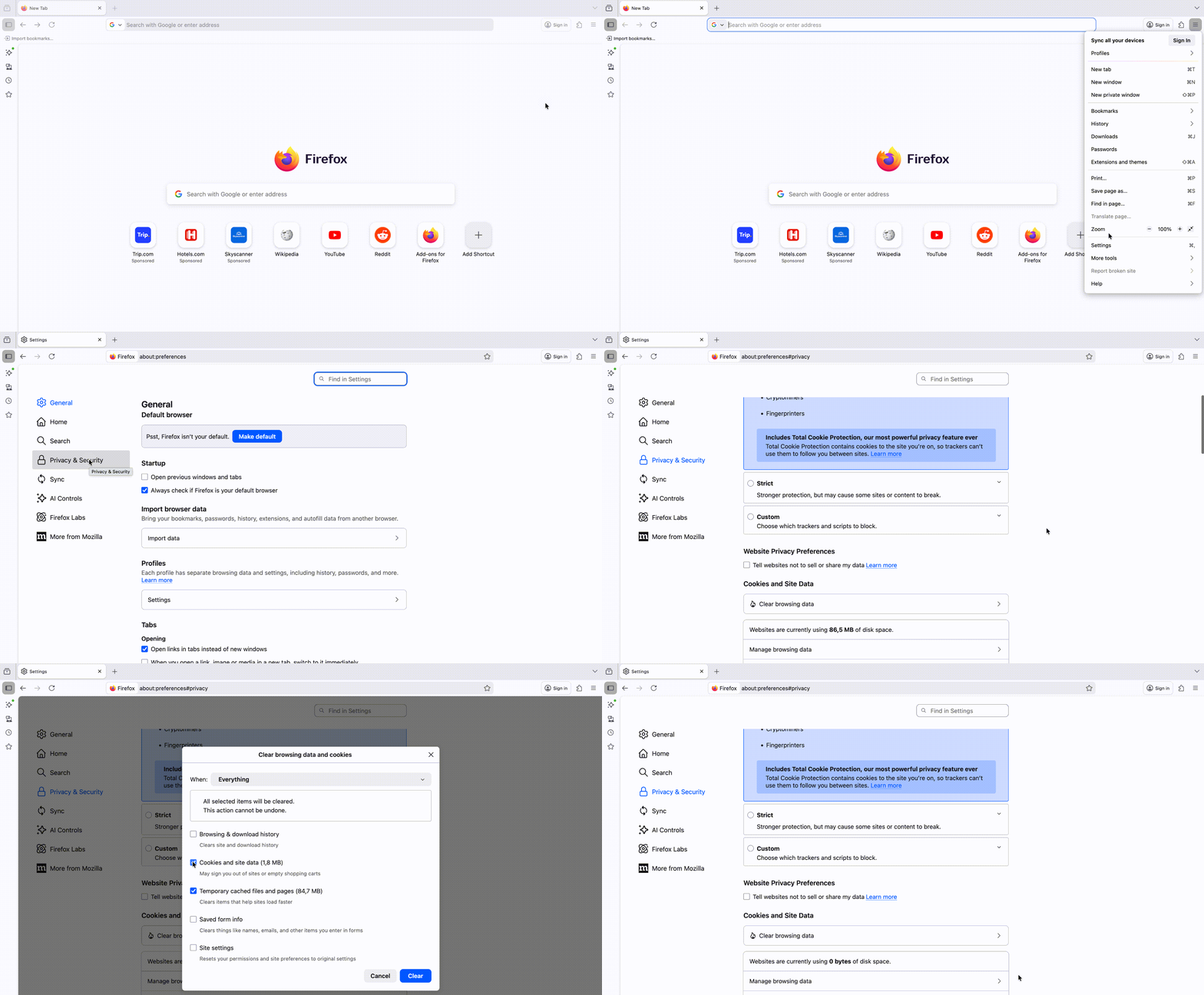
1. On your computer, open Firefox.
2. Click the menu button ☰, and select Settings.
3. Select the Privacy & Security panel.
4. In the Cookies and Site Data section, click Clear Browsing Data.
5. With the Cookies and Site Data and Temporary cached files and pages ticked, click the Clear button.
Brave Browser
1. On your computer, open Brave.
2. At the top right, click the menu button ☰.
3. Click More Tools → Clear browsing data.
4. At the top, choose a time range. To delete everything, select All time.
5. Check the boxes next to Cookies and other site data and Cached images and files.
6. Click on Clear data.

Microsoft Edge Chromium
1. On your computer, open Edge.
2. Click Customize and Control in the upper right-hand corner. Alternatively, use the shortcut ALT-F to access settings.
3. Go to Settings towards the bottom.
4. On the left panel, click on Privacy, search, and services.
5. Under Clear browsing data, click on Choose what to clear:
- Under Time range, choose the All-time option.
- Uncheck Browsing history.
- Ensure that Cookies and other site data and Cached images and files are still checked.
6. Click on Clear now.

Safari
1. On your computer, open Safari.
2. Click the Safari menu → Settings.
3. Under the Privacy Tab, click Manage Website Data.
4. Select the item you want to remove or remove all.