Bybit Stocks allows you to trade fractional shares of popular real world equities directly from your Bybit account using USDC. This guide walks you through everything you need to know — from placing your first order to managing your portfolio.
How to Buy/Sell Stocks
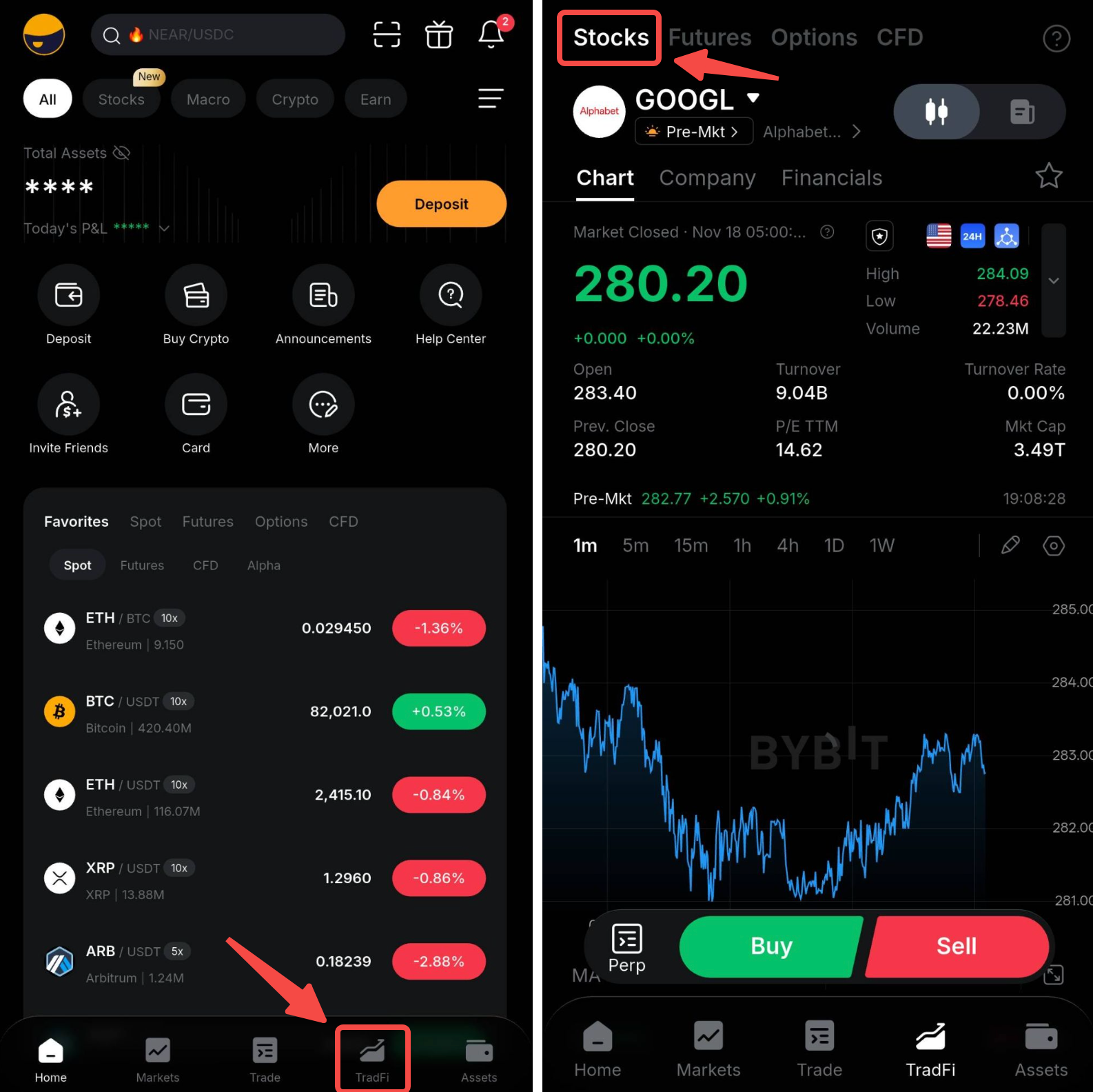
Step 1: On the Bybit app, go to TradFi and select Stocks at the top of the page. Browse the available stock pairs by tapping on the stock name and select the stock you want to trade.
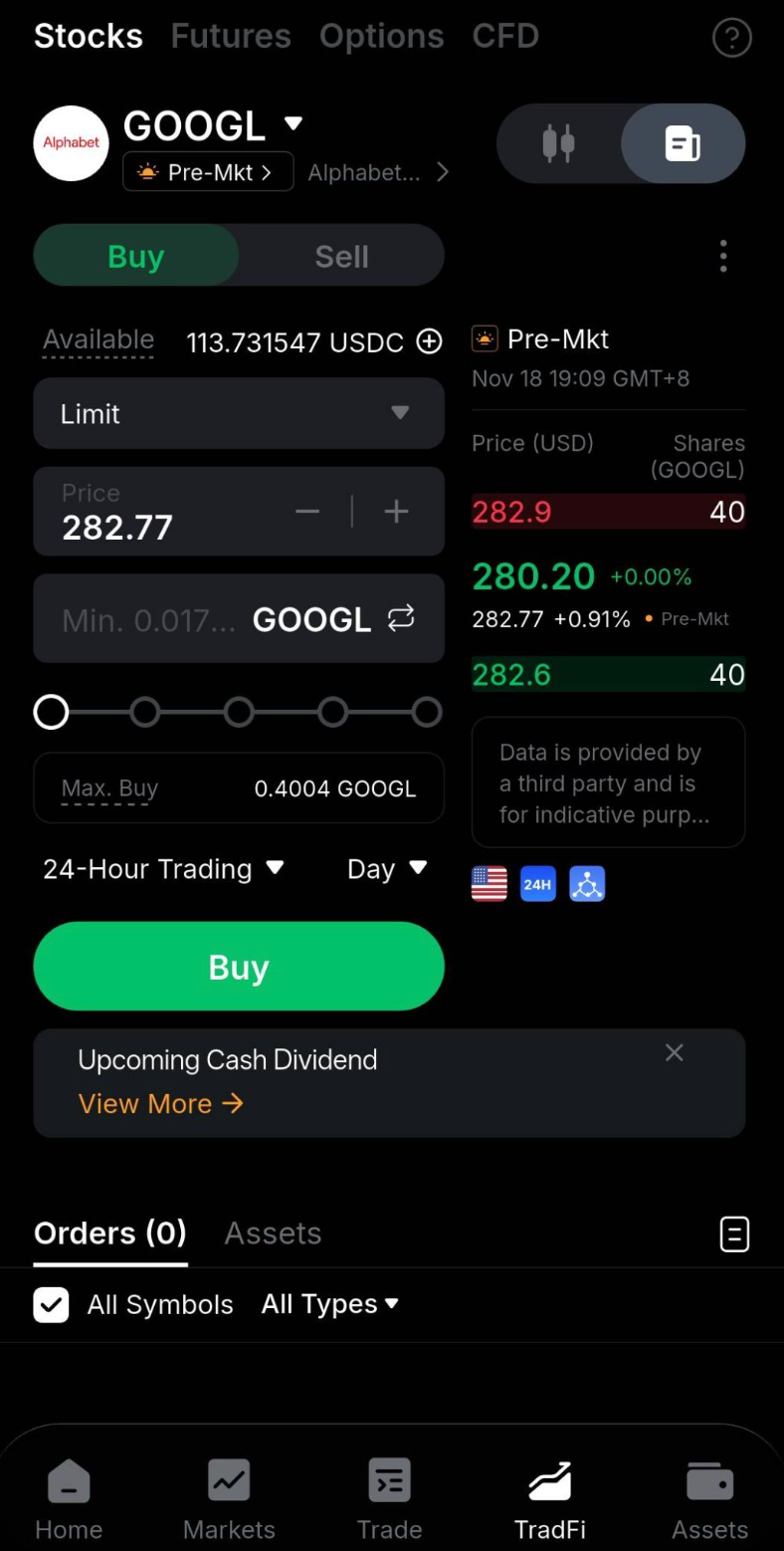
Step 2: Select the direction of your order by tapping on the Buy/Sell tab on the order panel and input the necessary information for your order:
- Order type: Choose between a Market, Limit, Conditional Market or Conditional Limit order.
- Quantity/Price: Enter the quantity and Price or the Order Value for your order.
- Trading Session and Time in Force: Open the drop-down menus to select the Trading Hours and Time in Force that will apply to your order.
Once you've configured your order, tap the Buy/Sell button.
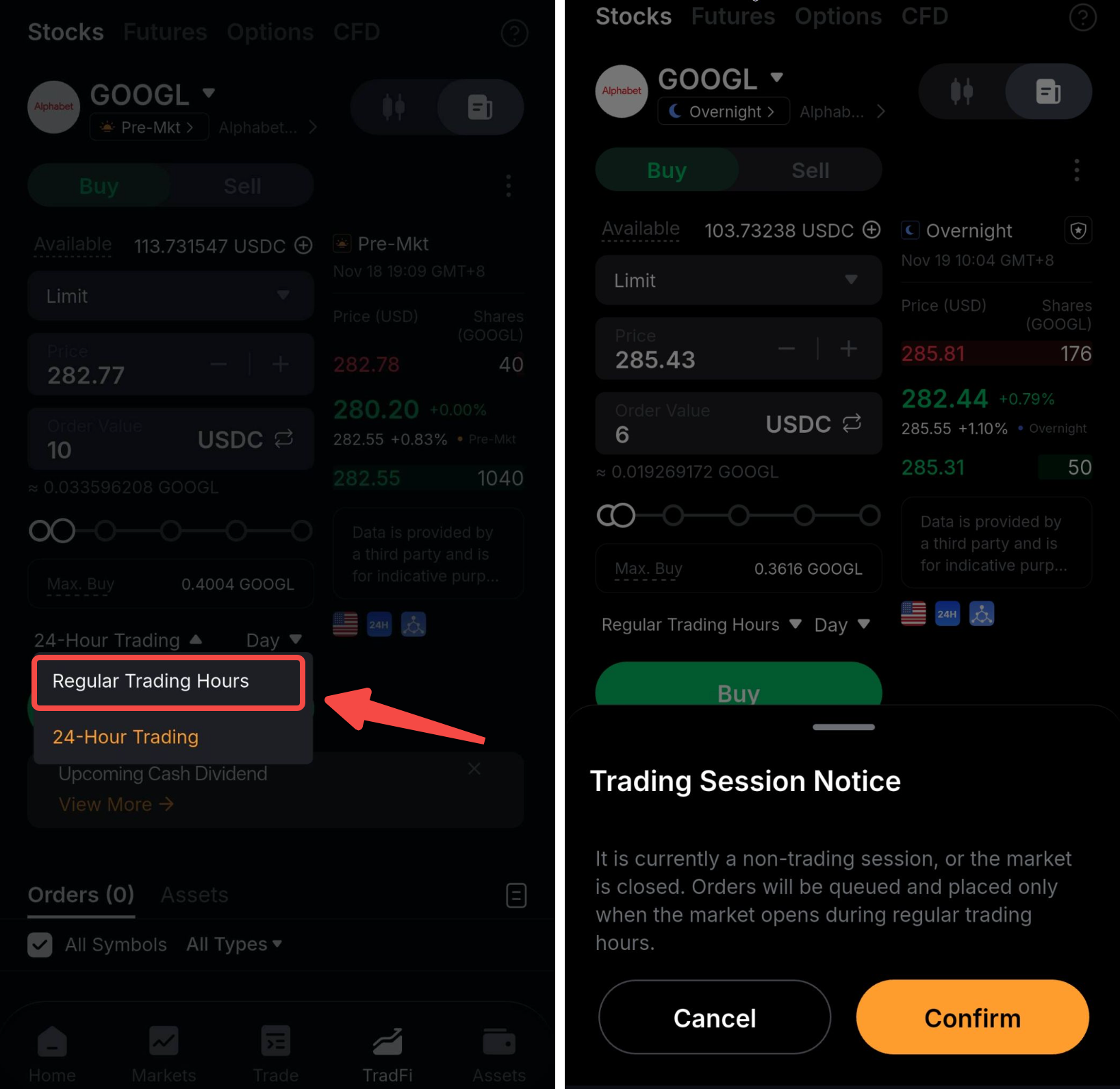
Note: if you place an order during a non-trading session and select Regular Trading Hours, the system will prompt you to confirm your setting. Orders placed during non trading sessions will be queued and placed only when the market is opened during regular trading hours.
Step 3: An order confirmation window will appear displaying your order details, including the stock symbol, order type, quantity, estimated cost, and any applicable fees. Review the information and tap Confirm to submit your order.
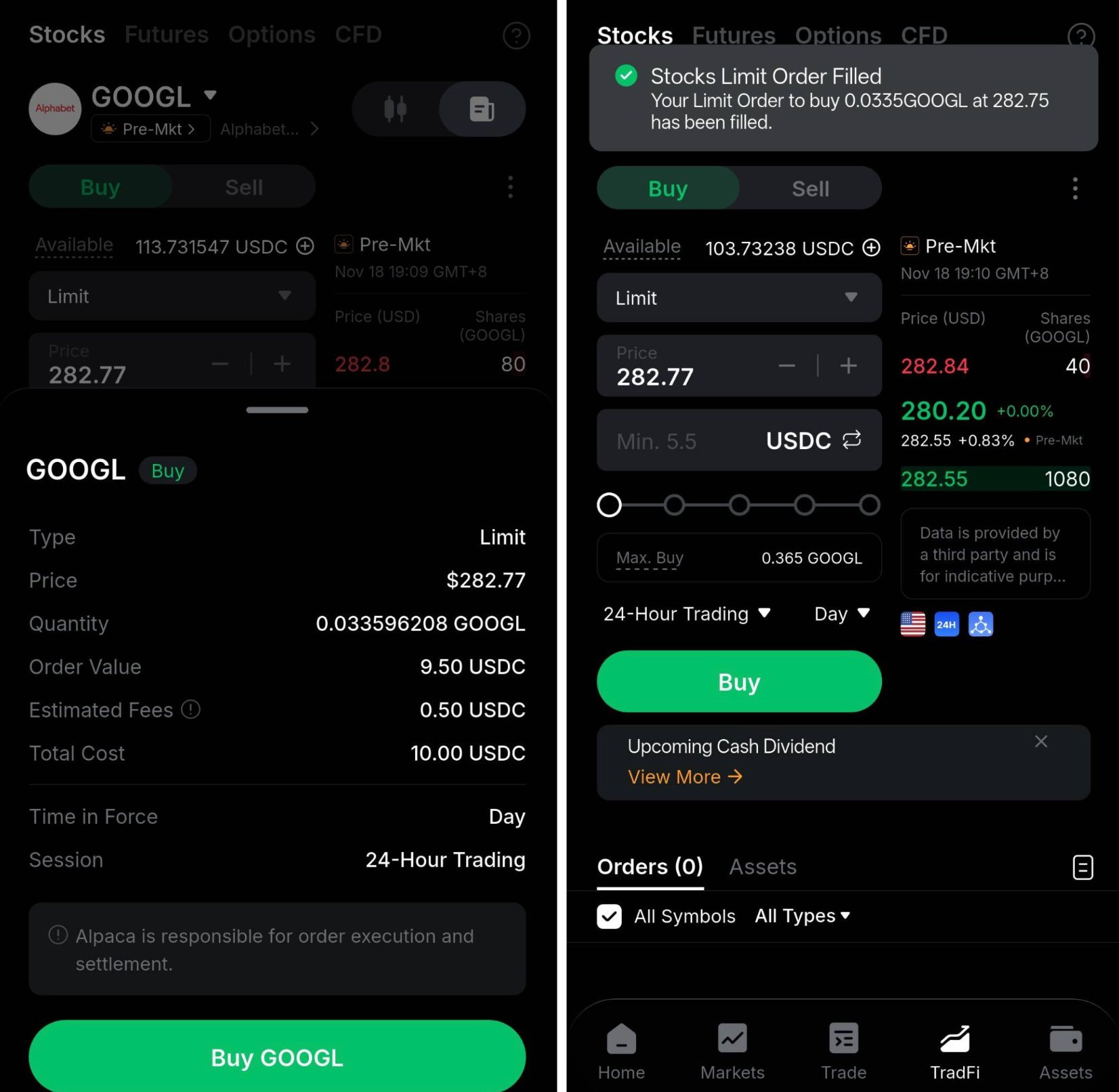
Note: Once an order is placed, it cannot be modified. If you need to make changes, you must cancel the existing order and place a new one.
How to View Your Orders
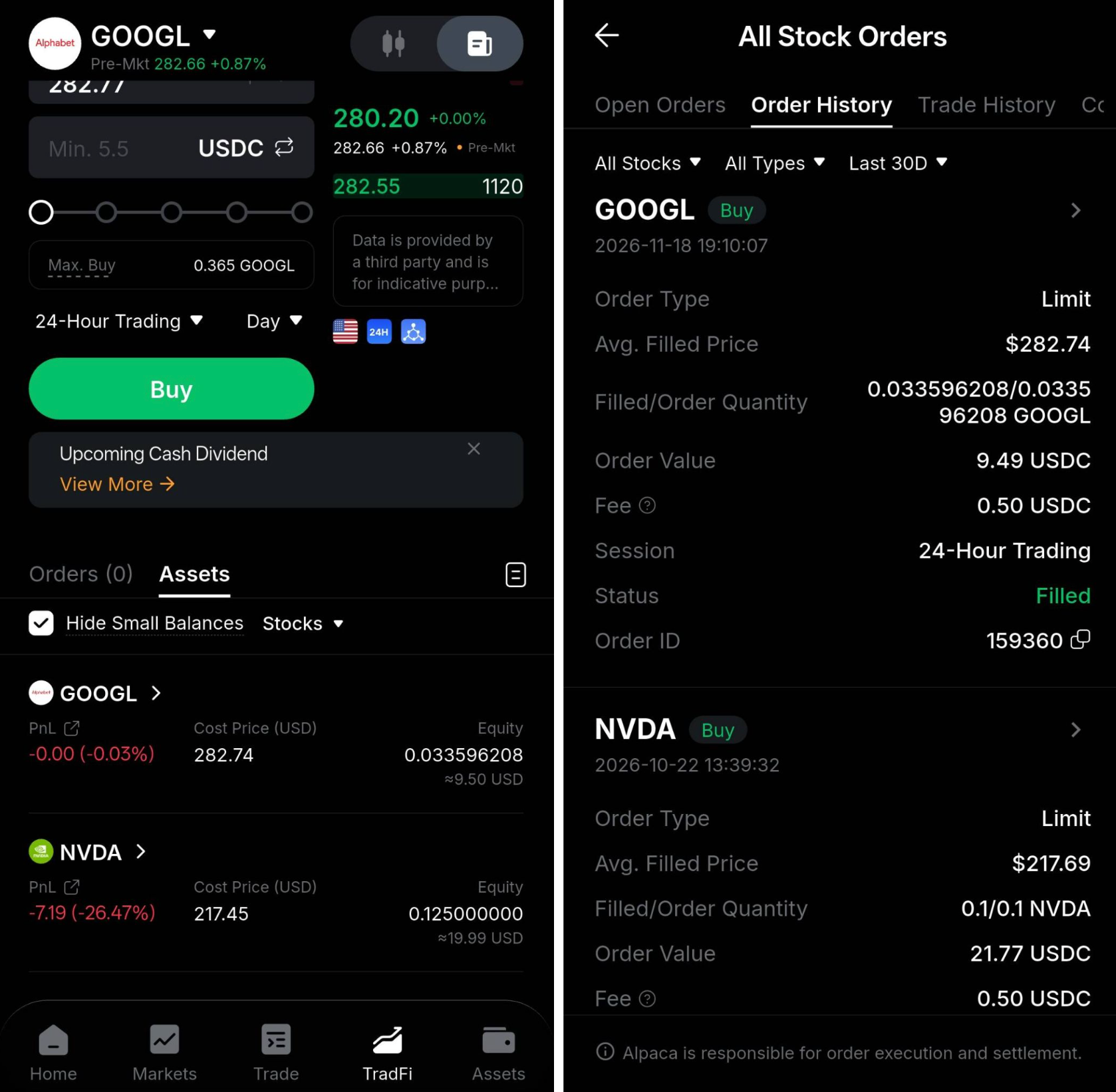
You can view your orders by tapping on the History icon below the order panel on the right side. The history page will display different information:
- Open Orders: Currently active orders awaiting execution.
- Order History: All past orders, including filled, cancelled, and failed orders.
- Trade History: Records of all completed trades.
You will be able to get a comprehensive view of your order activity and can filter orders by: Symbol, Order Type, Direction (Buy/Sell), Status and Order Time.
How to Cancel an Open Order
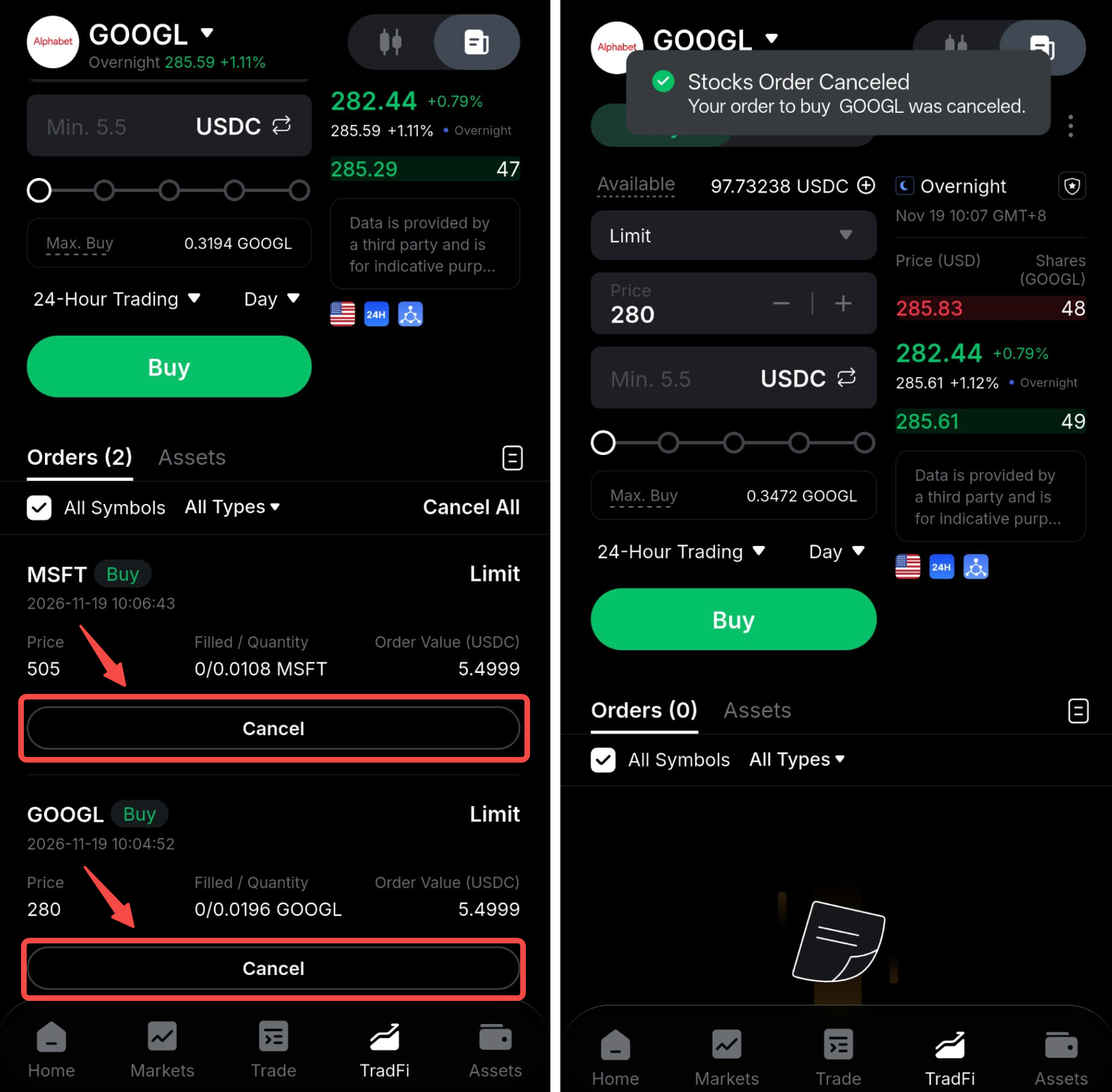
If your order has not been filled (or only partially filled), you can cancel it at any time. Simply locate the order under the Open Orders tab and click Cancel.
How to View Your Holdings
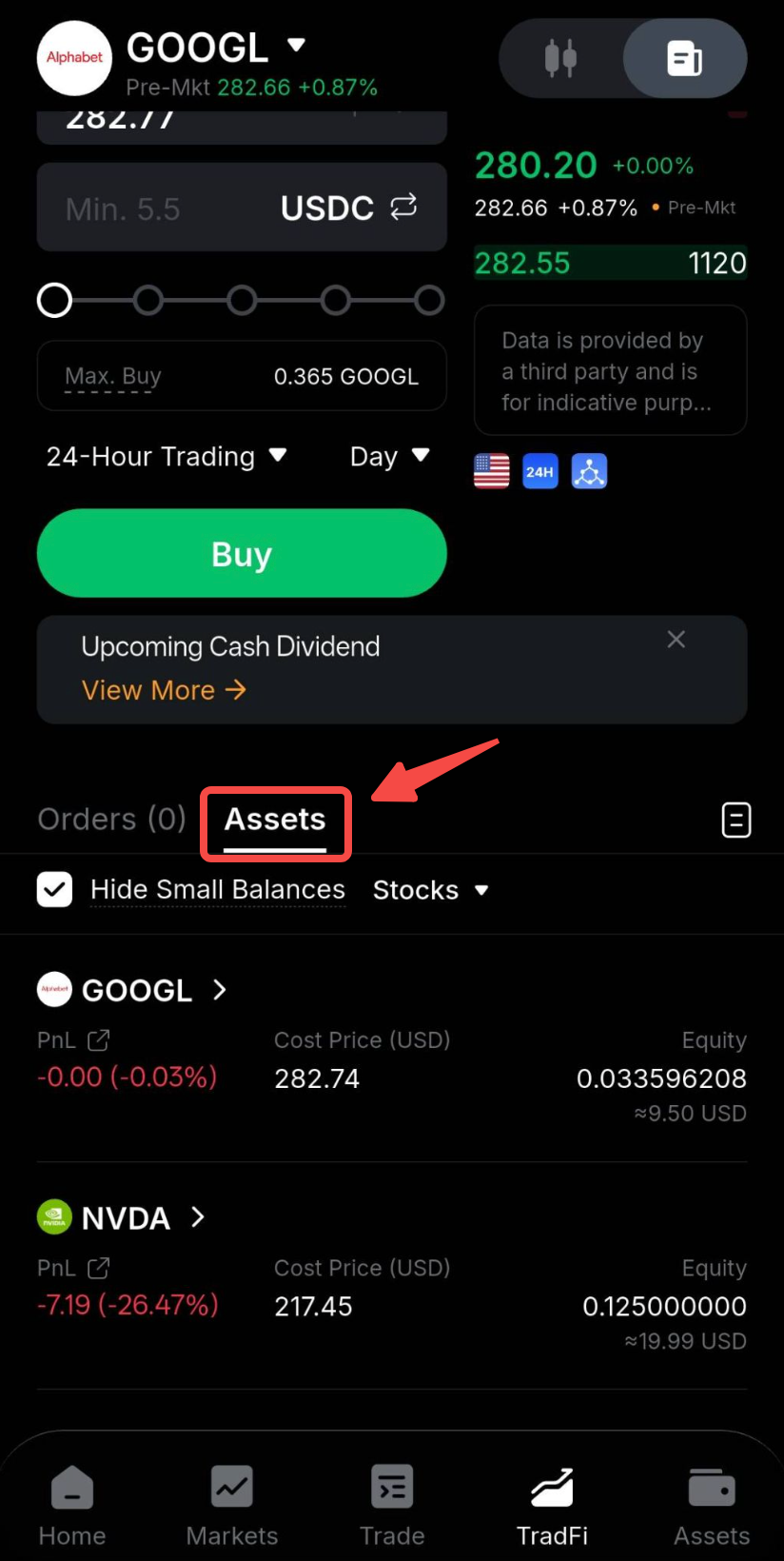
You can view your holdings by checking below the order panel in the Asset tab.
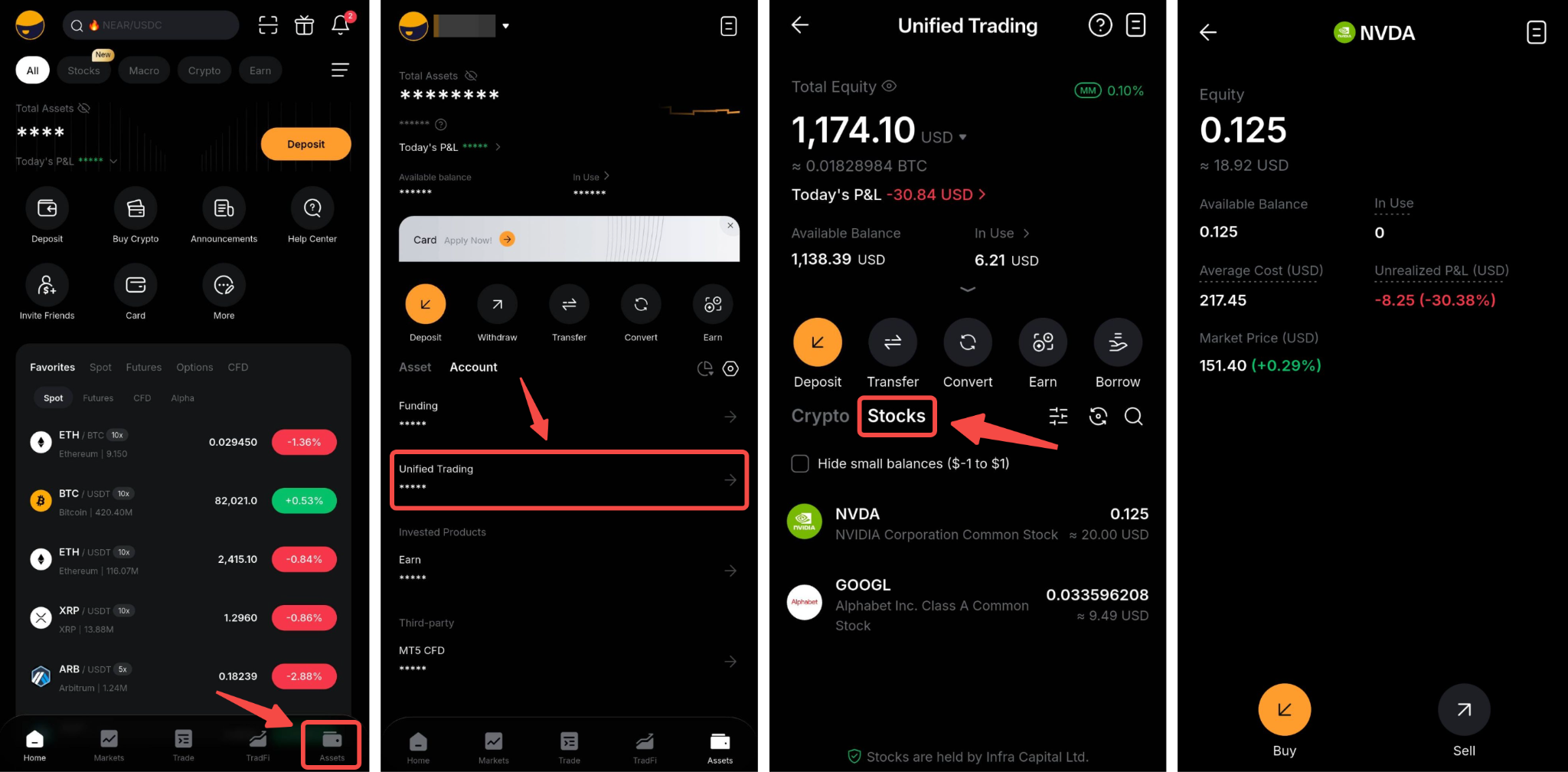
Alternatively, go to Assets → Unified Trading Account → Stocks to view your complete stock portfolio with following details:
- Symbol: The stock you hold.
- Equity & Market Price: Total number of shares held and current value of your holdings in USD.
- Available Balance: Shares quantity available for selling.
- In Use: Shares quantity locked in pending sell orders.
- Average Cost: Your average stock purchase price per share in USD.
- Unrealized P&L: Your current profit or loss based on the market price vs. your average cost in USD.