
On the Move Protection is a geofencing security feature that helps protect your account from unauthorized withdrawals initiated from unfamiliar or suspicious locations. Withdrawals made from a trusted location can be processed as usual while withdrawals initiated outside a trusted location will require additional security checks, even if the withdrawal address is included in your Withdrawal Address Whitelist.
Follow the steps below to add, manage, and update your trusted locations using the On the Move Protection feature.
Add a Trusted Location
Step 1: Open the Bybit App, tap your profile picture in the top-left corner, then tap the Settings icon to access the User Center.
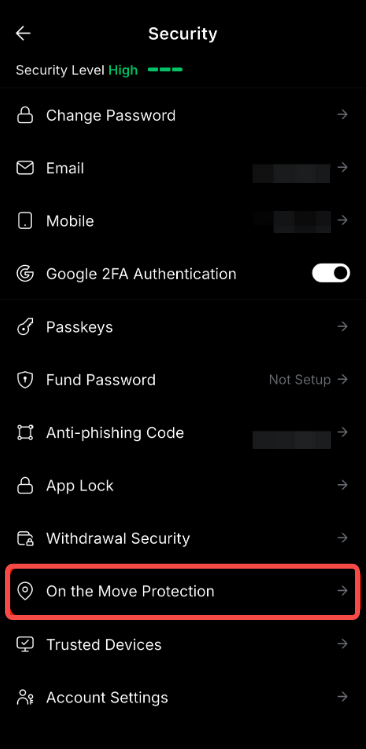
Step 2: Under the Security tab, scroll down to Scenario-based protection and tap On the Move Protection.
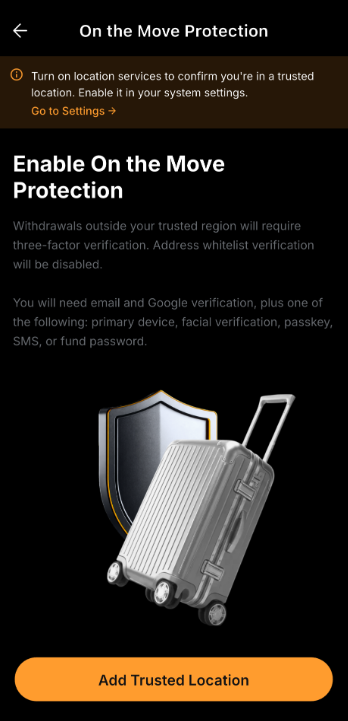
Step 3: In the Enable On the Move Protection pop-up window, tap Add Trusted Location. The system will automatically detect your current location.
Ensure you enable location permissions in your device settings. You may turn the permission on by tapping Go to Settings at the top of the page.
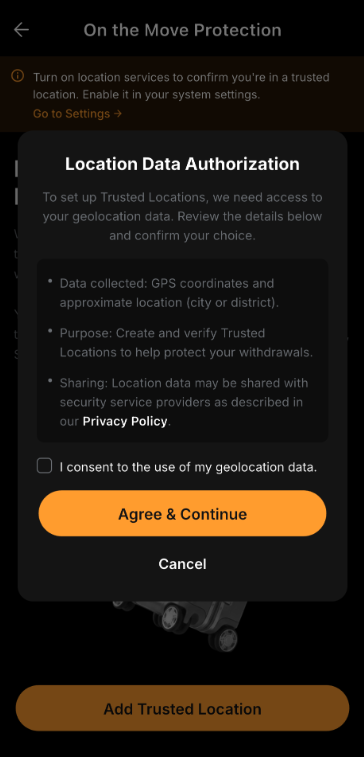
Note: When adding your first trusted location, you'll be prompted to authorize access to your location data. Review the information displayed in the pop-up window, check the consent box, and tap Agree & Continue.
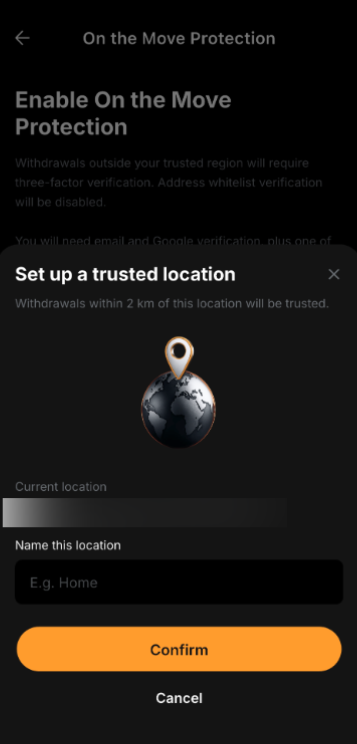
Step 4: Review the detected location and enter a name (e.g., Home or Office), then tap Confirm.
Step 5: Once confirmed, the location will appear in the Trusted Location list. You can use the toggle to enable or disable the location, or tap Add Trusted Location to add another trusted location.
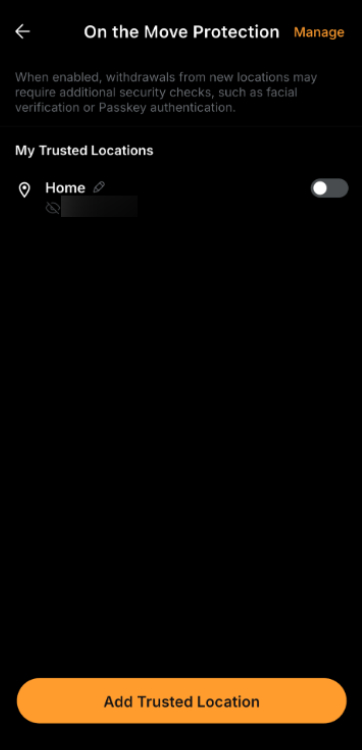
Manage Trusted Locations
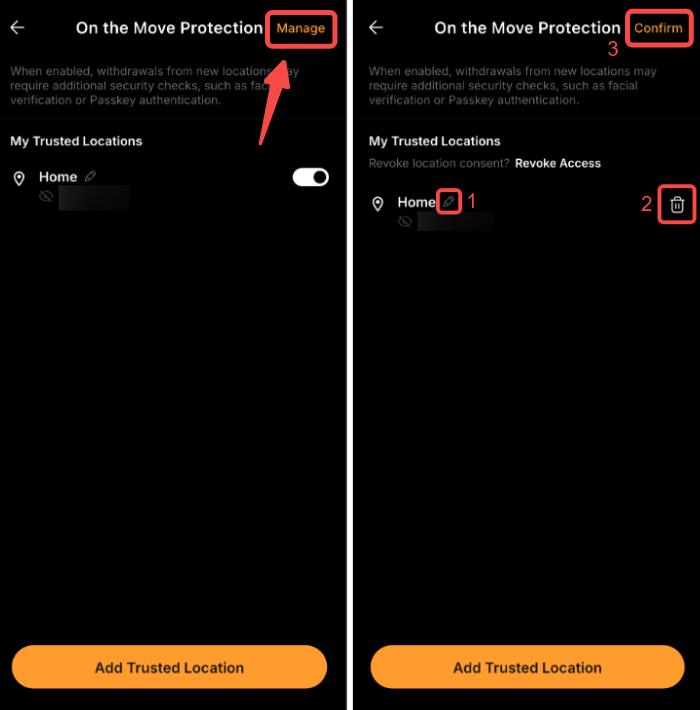
To manage your existing trusted locations, tap on Manage at the top right corner of the On the Move Protection page:
- Tap the Edit icon to rename a trusted location.
- Tap the Delete icon to remove a trusted location. Security verification is required when deleting a trusted location. Once removed, the location will no longer be recognized as a trusted location for withdrawals.
- Tap Confirm to save your changes.
You can also revoke access to your location data by tapping Revoke Access on this page. Once access is revoked:
- All trusted locations will be deleted.
- On the Move Protection will be disabled.
- All stored location data will be erased.
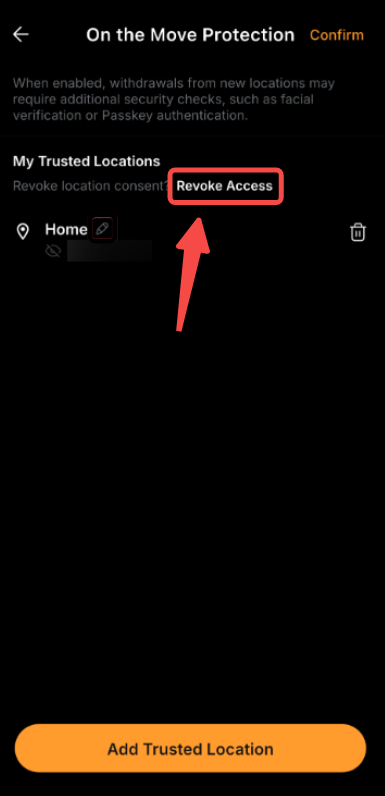
This action cannot be undone. To use this feature again in the future, you'll need to reauthorize location access.
Notes:
— Location permissions must be enabled on your device to use this feature.
— You can add up to two trusted locations based on your current location.
— Newly added trusted locations are disabled by default. After adding a location, you must enable it manually.
— Trusted locations are based on your detected location and a surrounding radius. If you move outside this radius, withdrawals may trigger additional verification.
— If you are not able to revoke location access due to an issue with security verification, please refer to this article for the Self-service Reset process.