
Bybit Odds is a fixed-return trading product that lets you take a directional view on crypto prices with clearly defined risk and reward. This guide walks you through how to access the product, place your first order, and track your results.
How to place an order
Step 1: Log in to your Bybit App. Tap Trade in the bottom navigation bar, then tap the menu icon in the top-left corner. From there, select Bybit Odds.
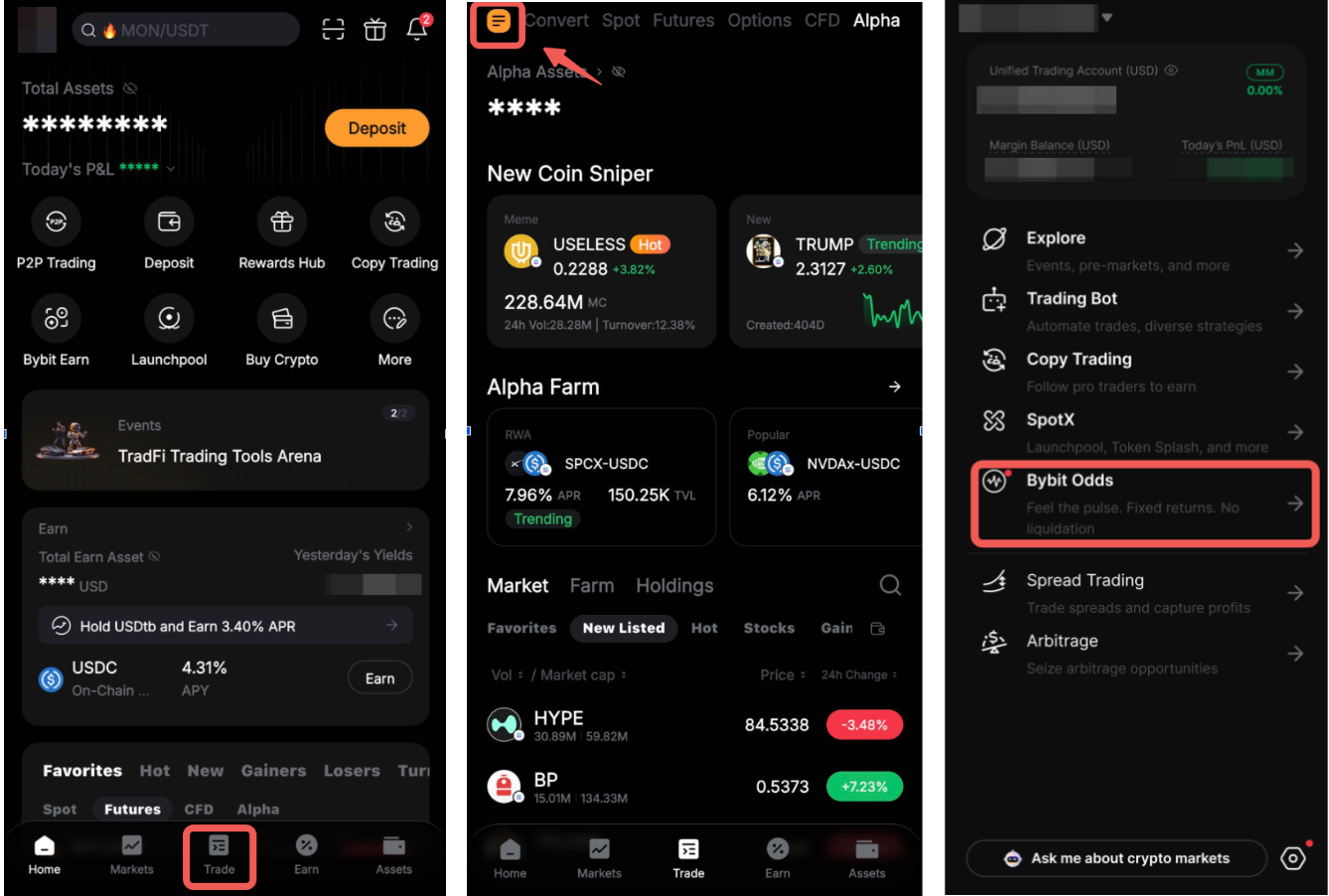
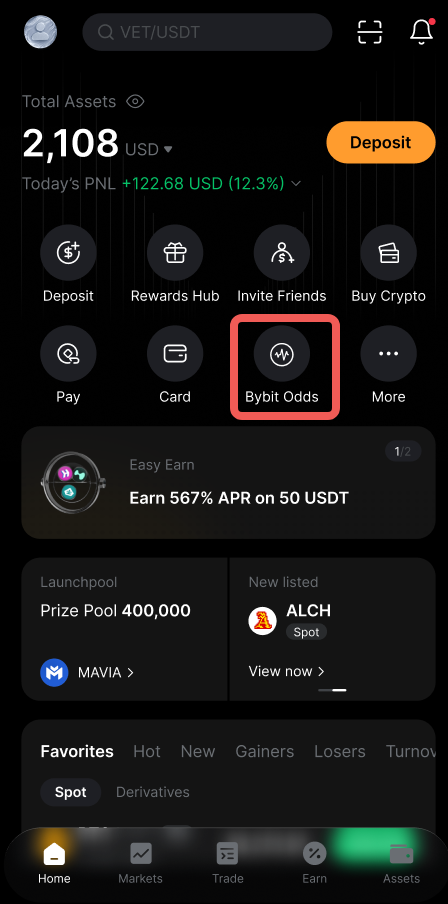
You can also find Bybit Odds in the Quick Access section on the app's Home screen.
You will be taken to the Bybit Odds trading page, where you can see the available product types.
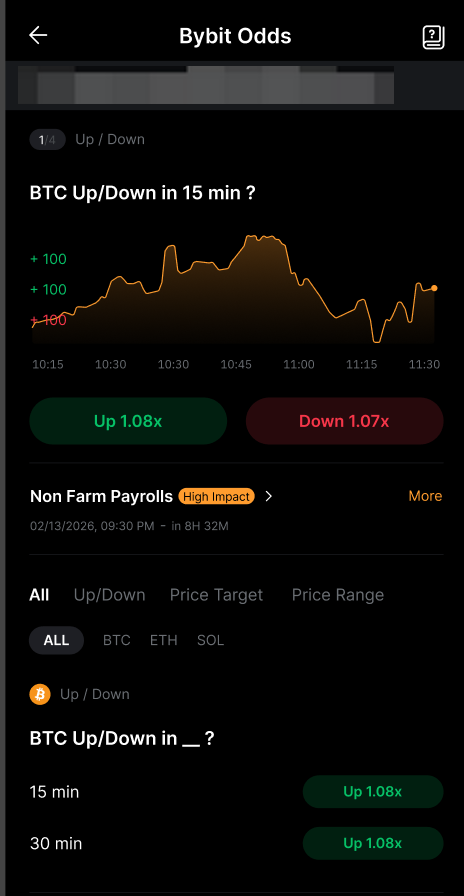
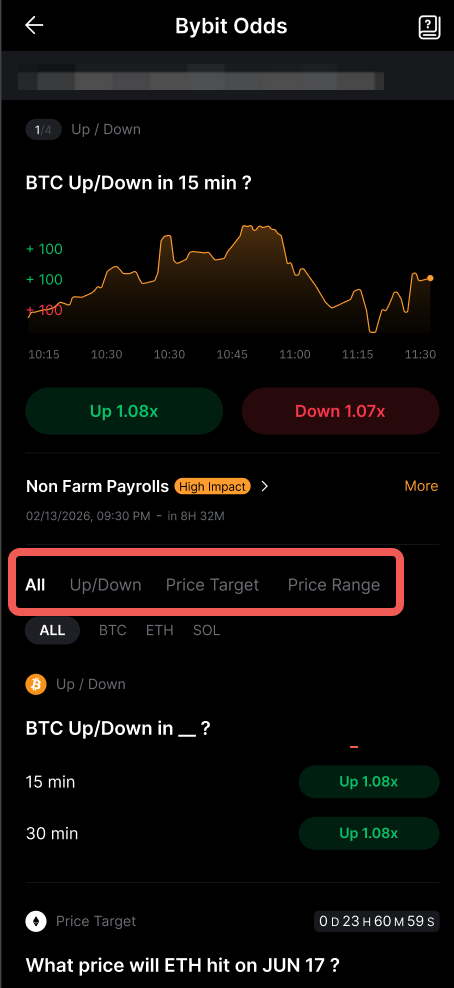
Step 2: Select the trading product type you would like to trade:
- Up/Down — Allocate on whether the price will go up or down within a 5-minute or 15-minute window.
- Price Target — Allocate on whether the price will be above or below a fixed target price at expiry.
- Price Range — Allocate on whether the price will fall within or outside a specified price range at expiry.
Step 3: From the order page, you can also change the Expiry or direction before placing your order.
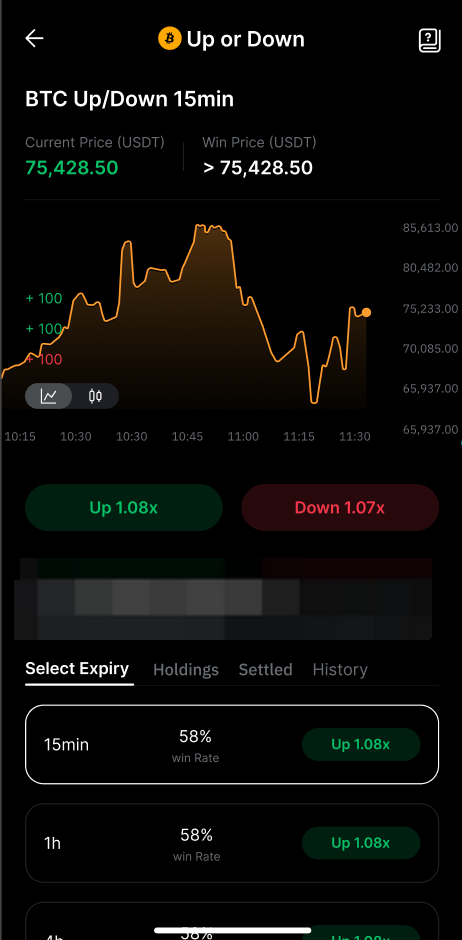
Step 4: Enter the amount of USDT you wish to allocate (minimum 5 USDT, maximum 500 USDT per order).
The Win Rate and Potential Return will be displayed based on the amount entered.
- Win Probability — An estimated likelihood of the selected outcome based on current market conditions (for reference only).
- Potential Return — The total amount you will receive if your prediction is correct.
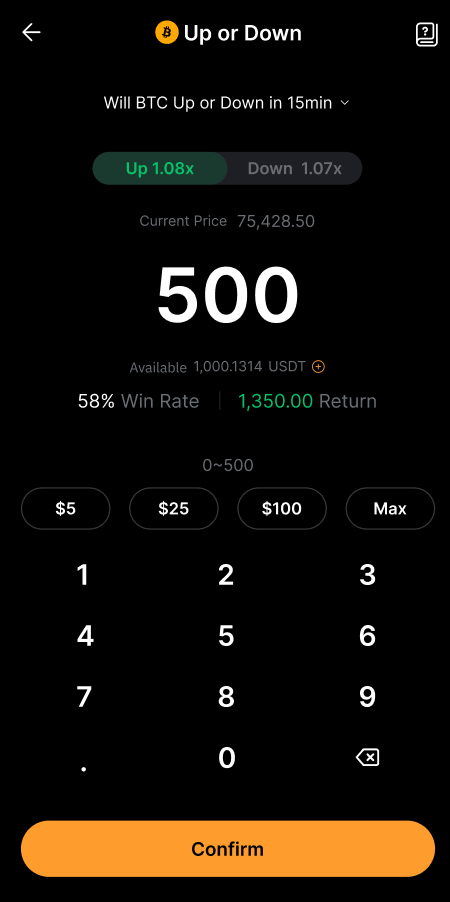
Note: The available balance shown includes the USDT-equivalent value of eligible collateral assets in your UTA; therefore, if your actual USDT balance is insufficient, borrowing will be triggered, and interest will accrue.
Step 5: Tap Confirm to proceed. A confirmation pop-up will appear displaying your order details.
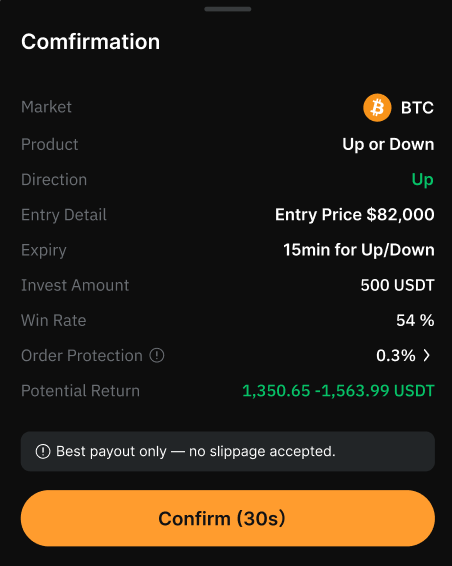
The confirmation is valid for 30 seconds. If it expires, you will need to click on Refresh to get the updated pricing.
Once the details are confirmed, click on Confirmation to submit your order.
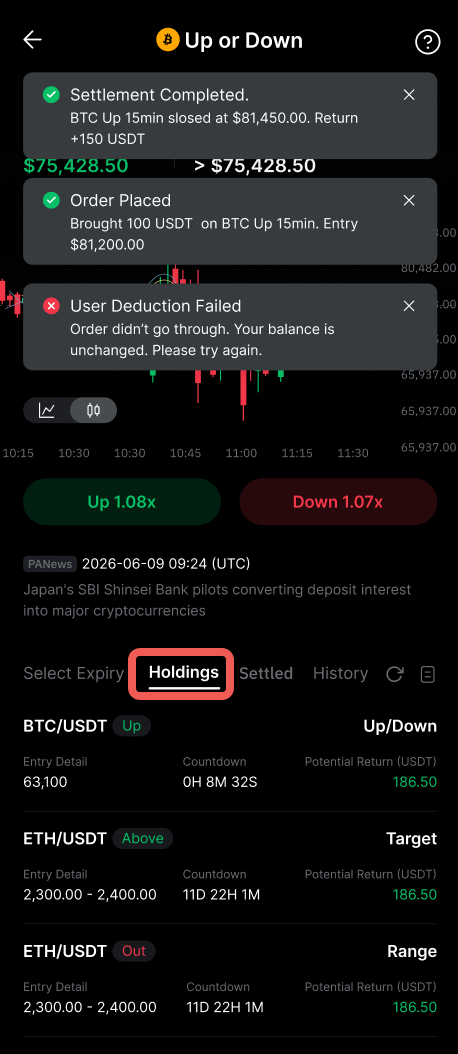
Step 6: Once your order is successfully placed, you can view it under the Holding tab at the bottom of the page. Here you will find:
- A countdown timer showing the time remaining until settlement.
- Your Trade ID for reference.
- The contract details, including your direction, allocation, and estimated return.
How to check your Order History
To check all your submitted orders, tap on the Order History tab. Each record includes the Trade ID and order details.
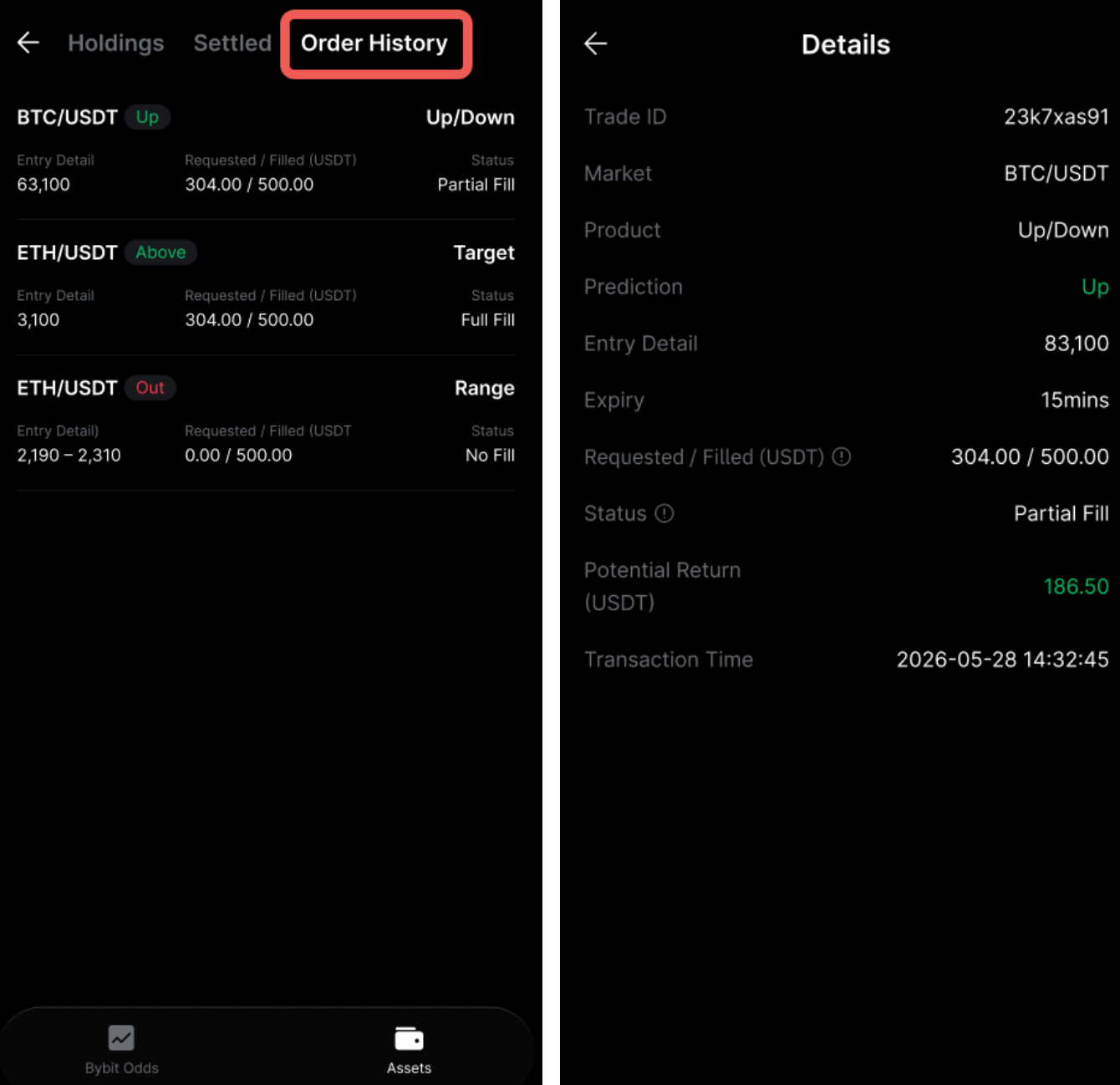
To view the full record of your past orders, click View More in the top-right corner to go to the full order history page.
How to check Settlement History
After your contract expires, the result will appear under the Settled tab:
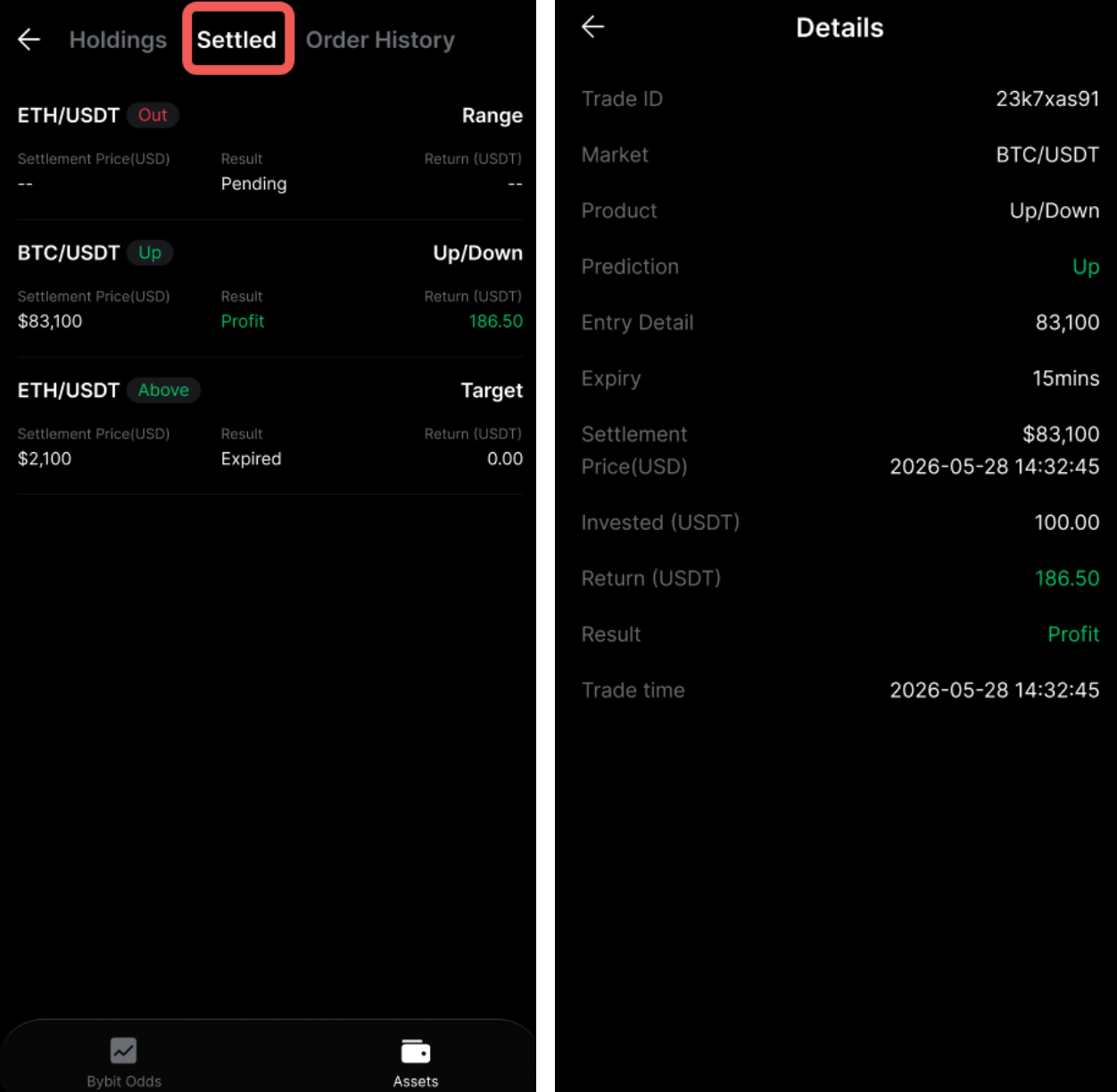
- Profit — Your prediction was correct. The return amount (Allocation × Payout Ratio) is credited to your Trading Account.
- Expired — Your prediction was incorrect, or the settlement price landed exactly on the boundary (draw). Your allocated amount is forfeited.
For more records, you may visit the Settled page.