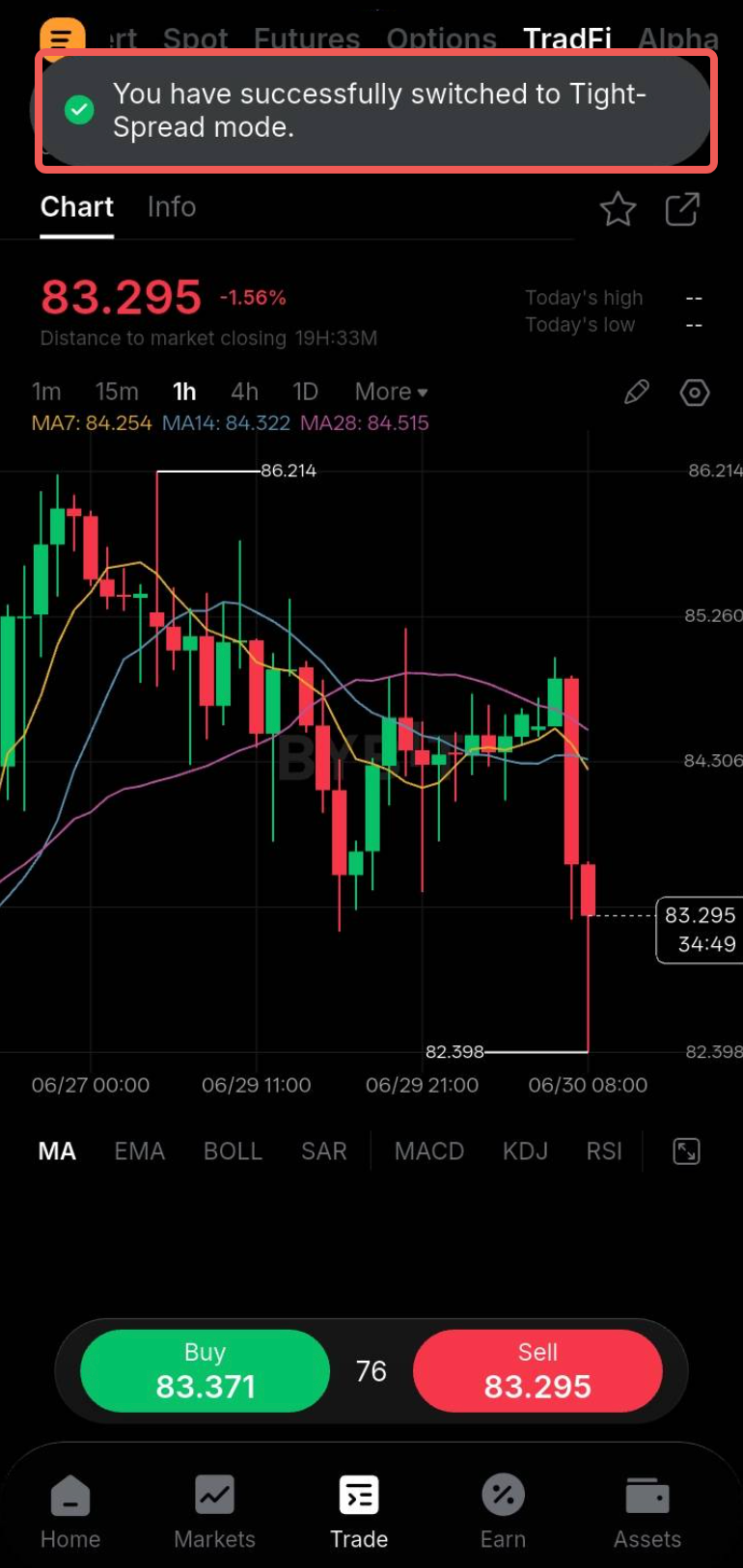
Bybit offers two trading account mode settings for TradFi, with each designed to support different trading styles, experience levels, and cost preferences. These TradFi account modes are as follows:
- Zero-Fee Mode — designed using the Straight Through Processing (STP) transaction model.
- Tight-Spread Mode — designed using the Electronic Communication Network (ECN) transaction model.
This article provides a clear overview of the key differences between the two account modes, the mode switching process, and guidance on choosing the account that best fits your trading needs.
Comparison between Account Modes
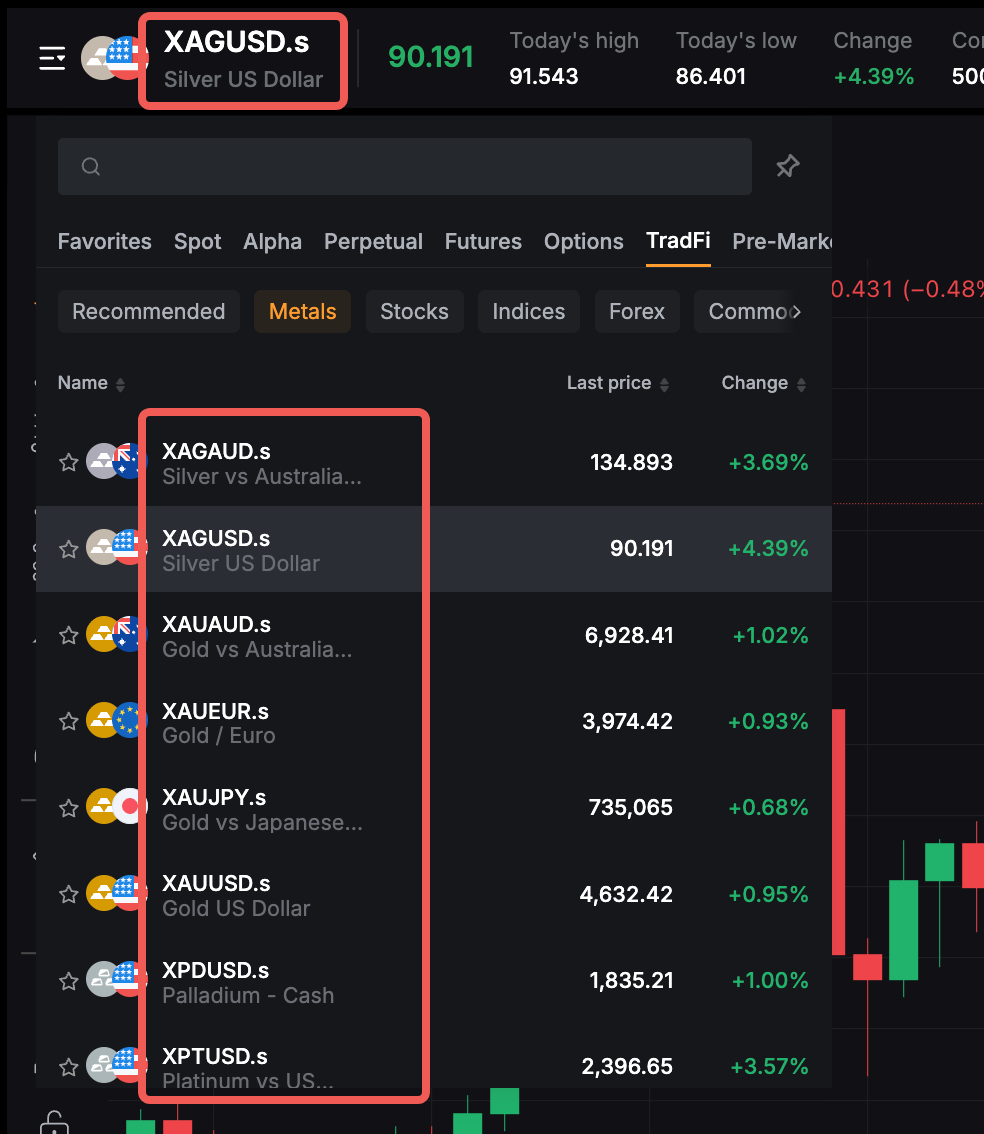
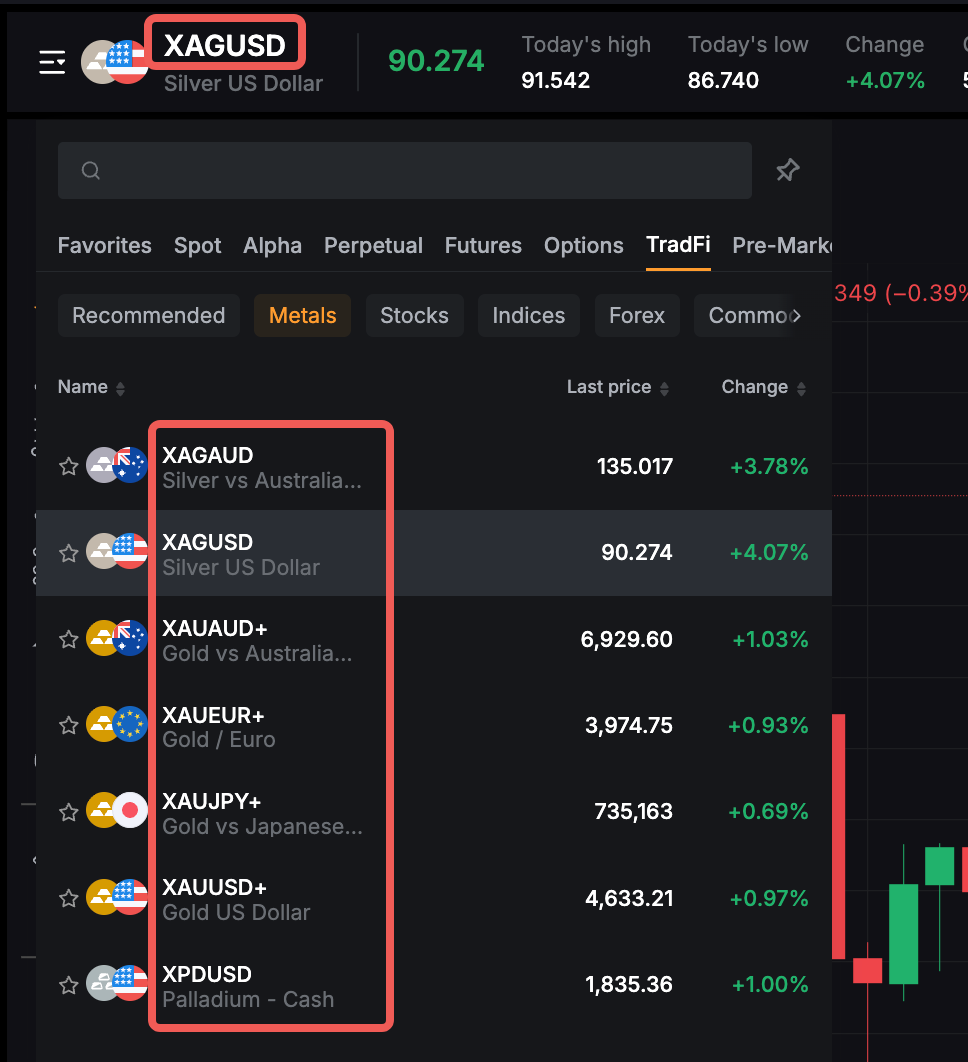
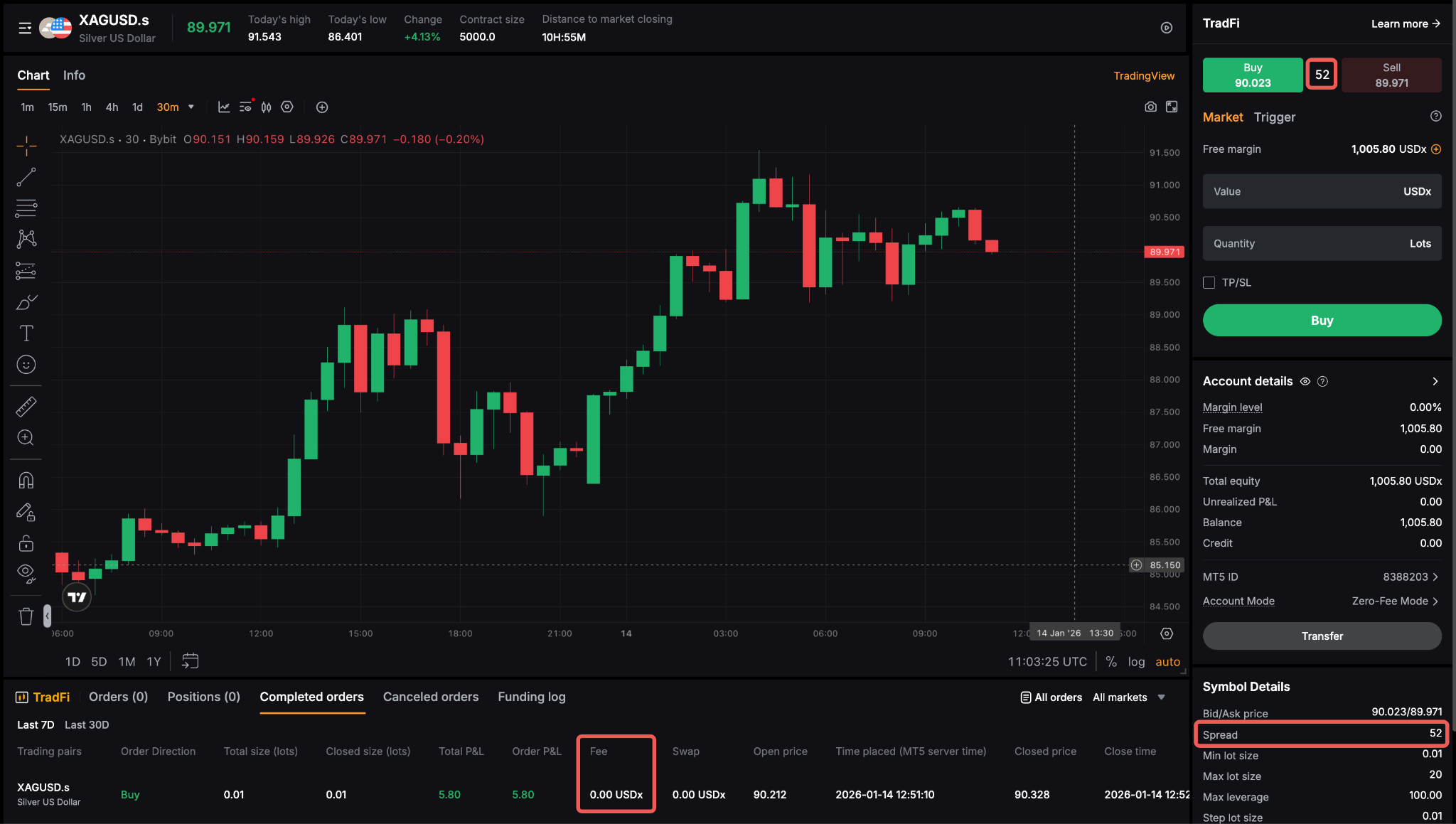
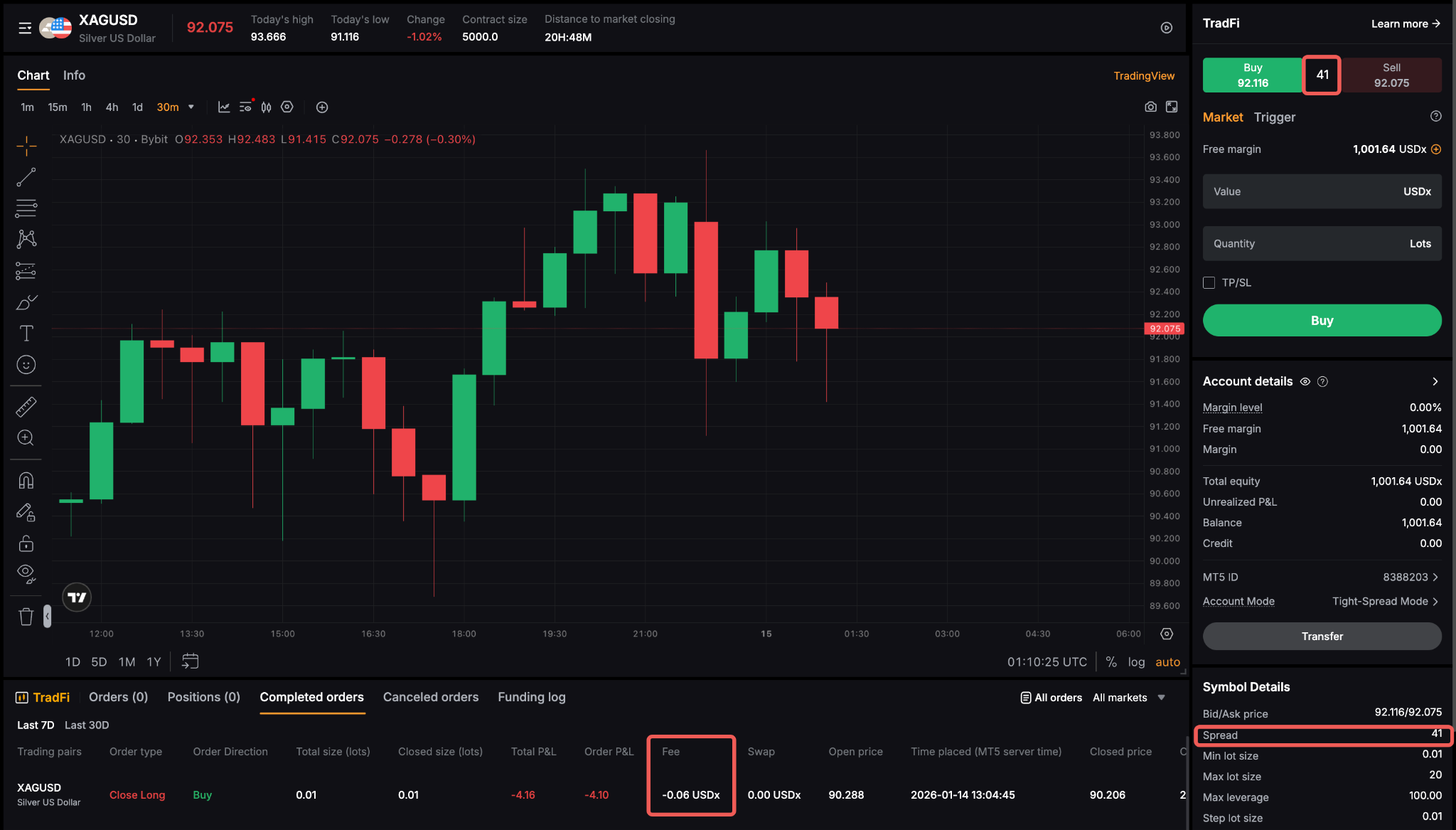
Note: In TradFi, price movements are commonly measured in points, where 1 point represents the smallest price movement based on the product’s quote precision. For most Forex pairs quoted to 5 decimal places, 1 pip = 10 points. For example, a move from 1.10000 to 1.10010 equals 1 pip, or 10 points. However, the exact pip value may vary depending on the product’s quotation format.
In summary, Tight-Spread mode offers traders raw spreads with a fixed commission per trade, whereas Zero-Fee mode is designed for all-inclusive spreads with no additional commissions charged.
Account Eligibility
By default, the user’s TradFi account is set to Zero-Fee mode. Users may switch to Tight-Spread Mode only if they meet the applicable eligibility requirements. Users can determine the current account mode for their TradFi account by checking the Account Mode section on the Account page or on the trading page.
To be eligible for the switch to the Tight-Spread mode, users must meet the following conditions:
- Have a minimum cumulative deposit of USD 3,000.
- No active orders and open positions
How to Switch Modes
Once you have met all requirements to switch to Tight-Spread mode, follow the step-by-step guide below to adjust your account mode settings in TradFi:
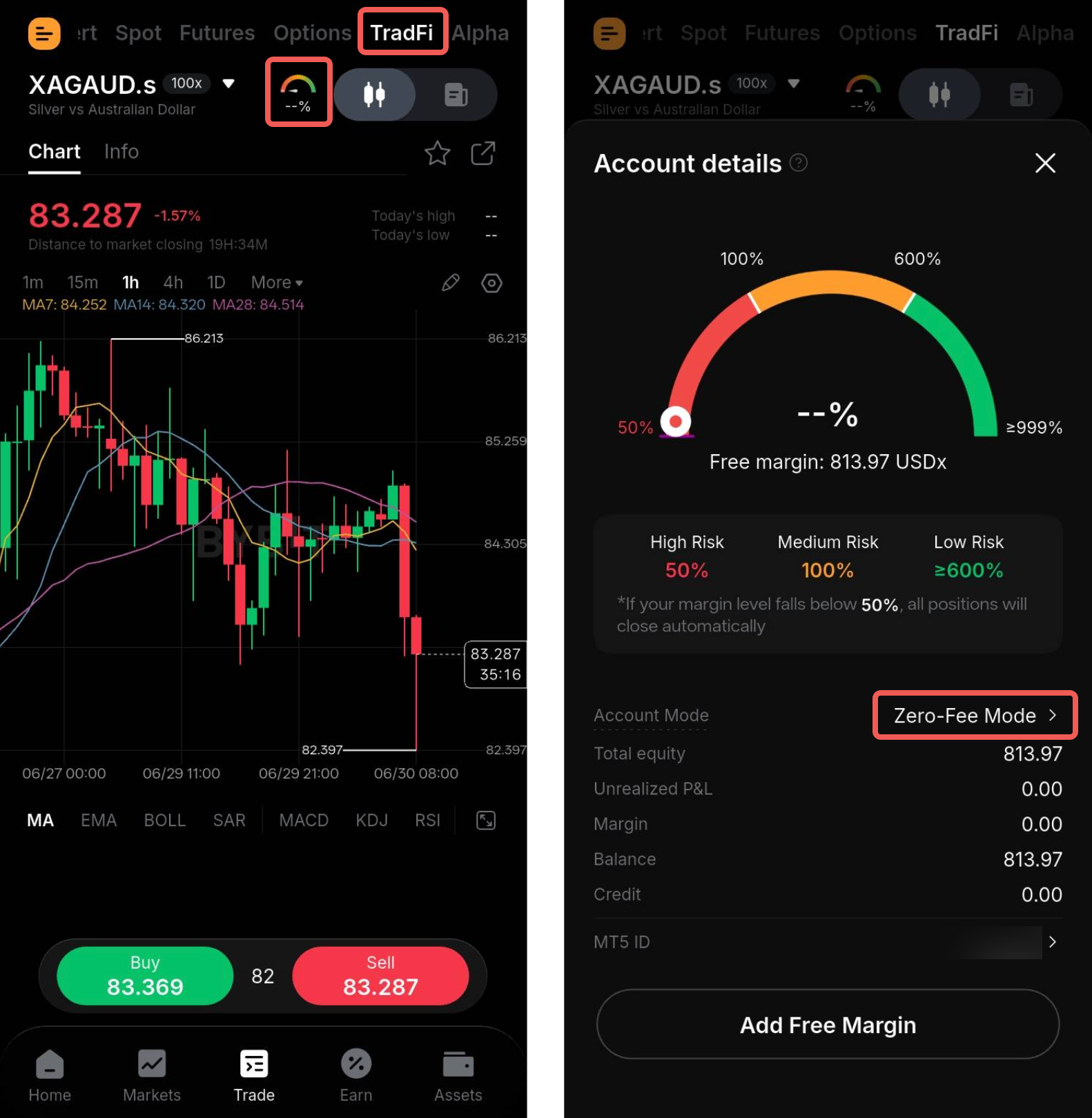
Step 1: On the TradFi Trading page, tap the Margin Level icon to open the Account details window. Then, tap the arrow next to your current account mode in the Account Mode section.
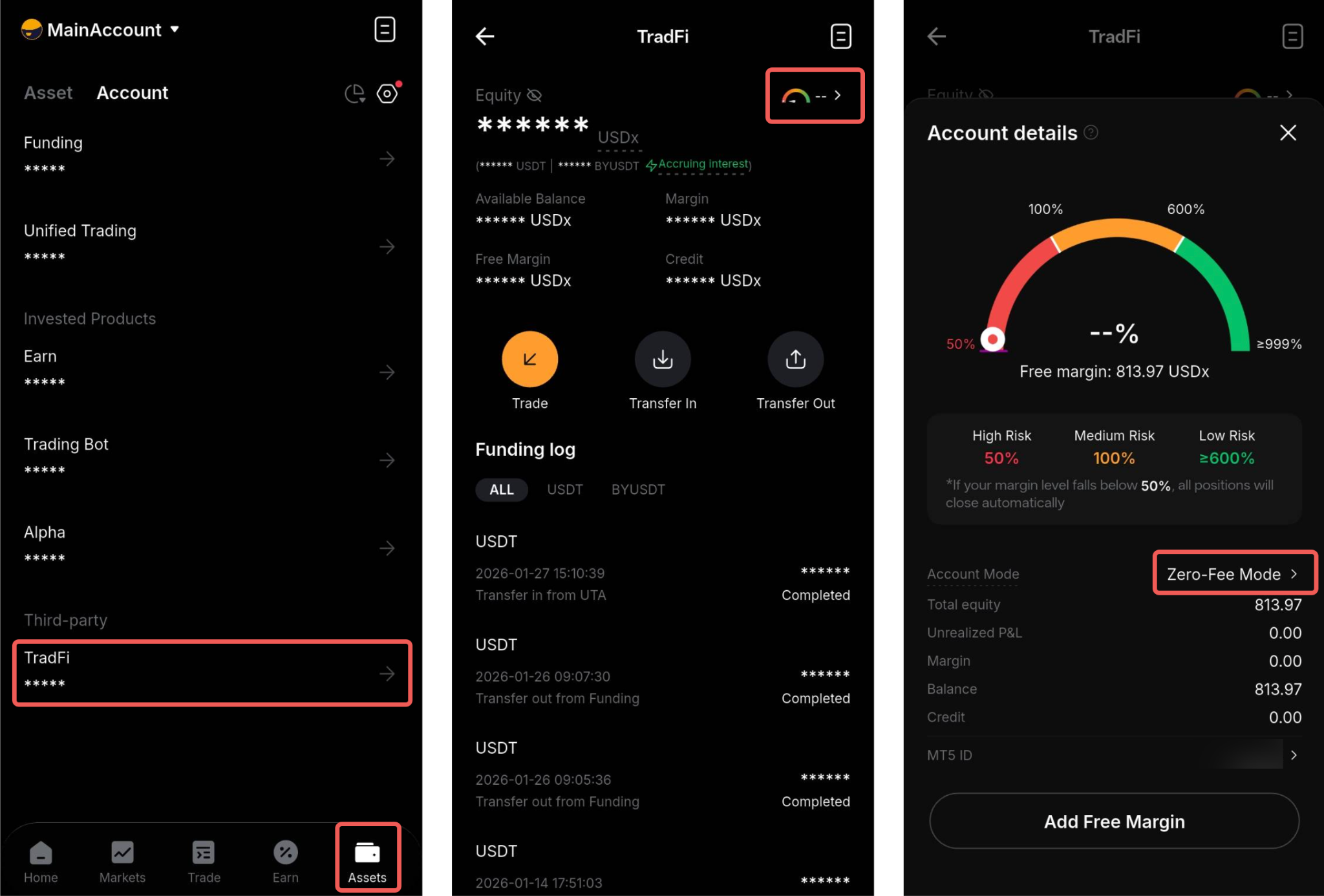
Alternatively, go to Assets → TradFi, then tap the Margin Level icon on the top right corner to open the Account Details window. In the Account Mode section, tap the arrow next to your current account mode.
Step 2: This will prompt the Account Mode Settings window. Your current mode will be highlighted accordingly. Read all the mode details carefully before proceeding to switch.
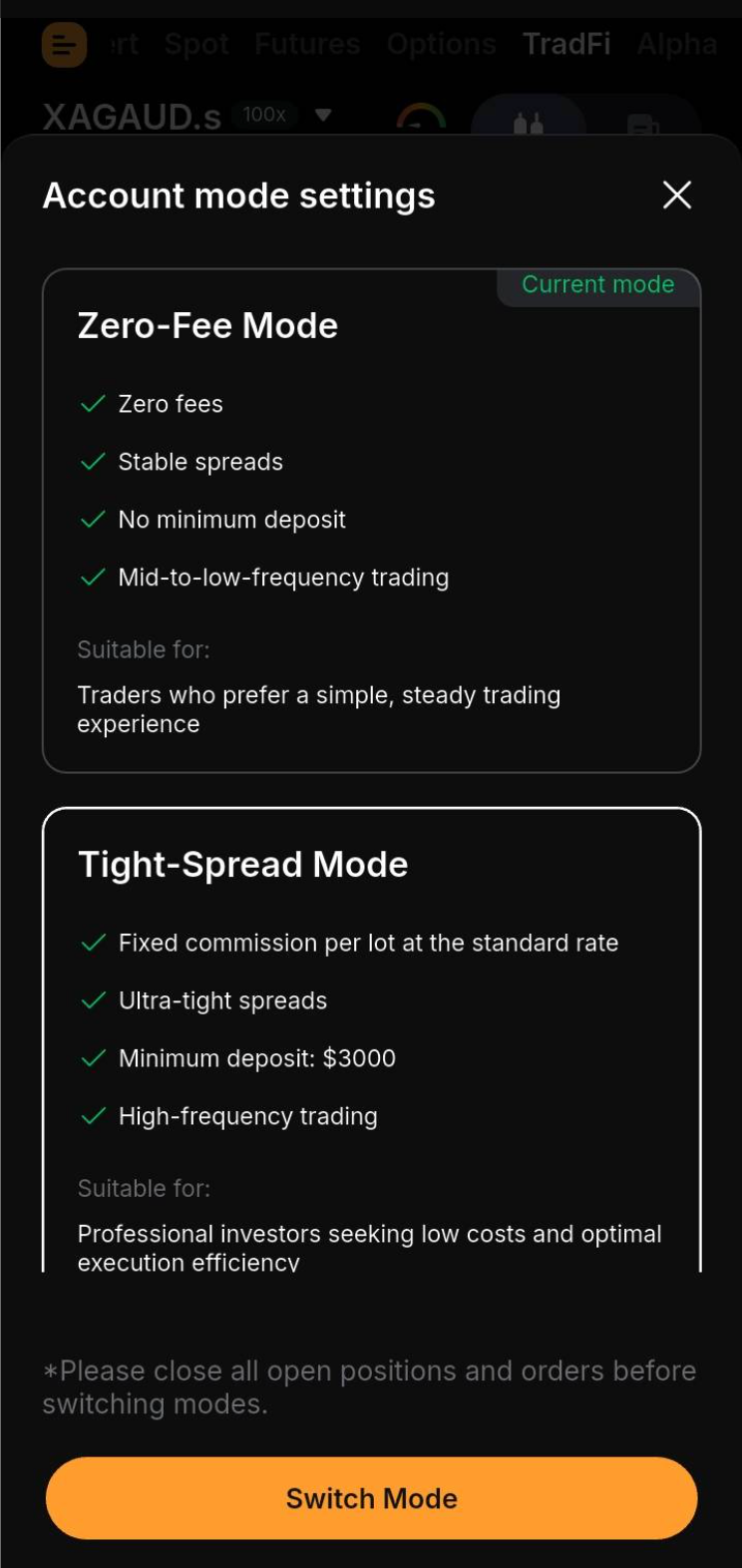
Notes:
- The minimum deposit requirement will only be applicable prior to the account switch. Upon successfully switching, the amount will be counted towards your accumulated deposit, and you are free to change between modes thereafter.
- If you need to make a deposit, please refer to How to Deposit and Withdraw Funds to and from TradFi Account
Step 3: Click either one of the modes to proceed and then click Switch Mode.
You have successfully switched your TradFi account mode!