
Bybit now provides self-service appeal support for users who have received refunds from another exchange platform and wish to credit the refunded amount into their Bybit Funding Account.
Before jumping into the process of appealing for a refund, it's crucial to understand the nature of your situation. A withdrawal refund normally happens when traders make a withdrawal from Bybit to another exchange, but another exchange rejects the deposit and refunds the amount back to Bybit due to several reasons such as an invalid tag deposit, or the coin deposited is not supported, and more.
If your withdrawal status on Bybit shows Successfully Transferred but you haven’t received it on the recipient exchange, you can provide the withdrawal TXID to the Customer Support team of that exchange. The withdrawal TXID details can be found on your Funding Account History → Withdraw.
Once you have confirmed that the recipient exchange has refunded the deposit to Bybit, obtain all the refund details from the corresponding exchange platform. You can then refer to the following guidelines to submit a self-service appeal for your crypto deposit on Bybit.
How to Submit an Appeal for Refund
Step 1: Open the Self-Service page by clicking on More → Help Center → Crypto Deposit not arrived.
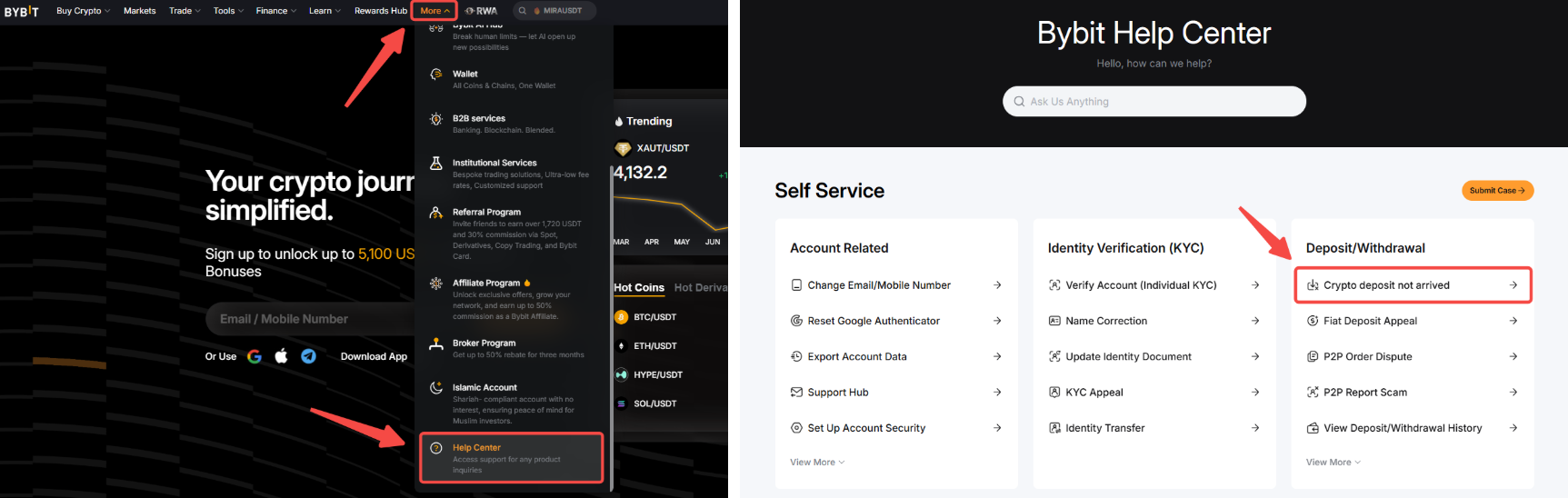
If you are using the Bybit App, please tap on More on the homepage and tap on Help Center in the Services section. Open the Deposit/Withdrawal tab under Self-Services and tap on Crypto Deposit not arrived.
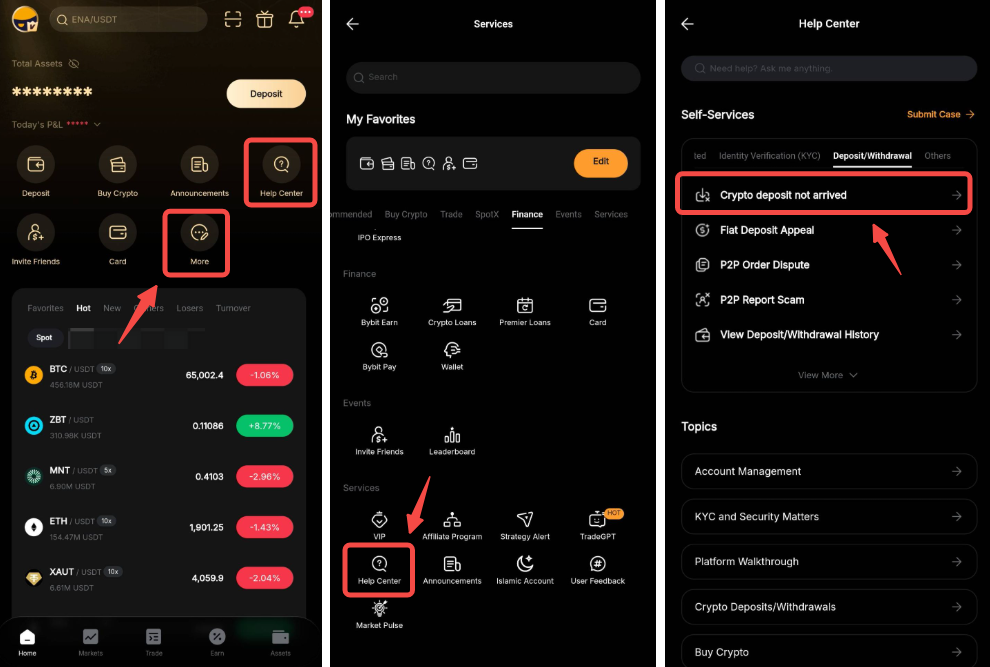
Step 2: Select the reason why your deposit has not arrived: Refund from an external exchange.
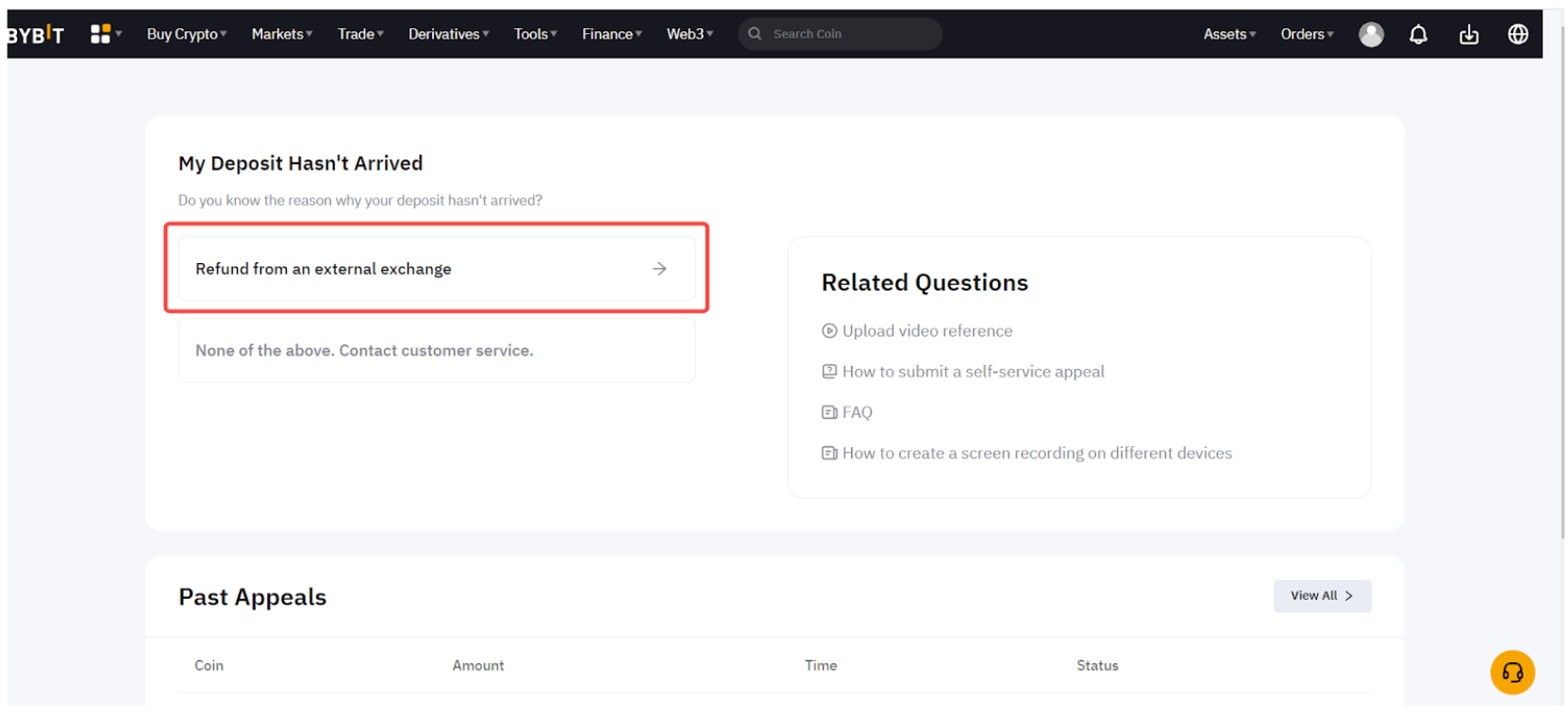
Step 3: Fill in the details of the refunded deposit
a. Coin: Name of the coin you deposited
b. Chain Type: Blockchain network of the coin you deposited
c. Details of your withdrawal from Bybit - The details can be found here.
- Withdrawal Amount (Excluding Fees)
- Withdrawal Address
- Withdrawal TxID/TxHash

d. Details of refund from external exchange to Bybit: The details can be obtained from the external exchange
- Refund Amount
- Refund TxID/TxHash
Notes:
- Do not enter the withdrawal TXID (From Bybit) in the refund TXID field.
- Ensure that you input the correct refund amount. You can verify the accurate refund amount using a blockchain explorer.
- If your withdrawal was successful but you did not receive the funds and do not have the “Refund TXID”, please contact the destination platform for further assistance.
- The self-service submission is only applicable if the relevant exchange or platform has successfully processed the refund.
Step 4: Upload a clear screen recording to verify that the refund/return transfer was made from the external exchange platform to Bybit. The recording should highlight the following key points.
Note: Failure to provide the necessary information may result in the rejection of your appeal.
a. Login to the external exchange platform: Log in to the external exchange platform successfully. To protect your login credentials, you may consider typing your username and password first before starting screen recording. A face ID login/ SMS code/Google 2FA verification are all acceptable.
b. Show the Deposit/Refund record page: Navigate to the deposit/refund record page of the exchange platform.
c. Show the full refund TXID details: Show us the related Refund TXID details and information. Details should include the amount, coin type, transfer date and time, and the completed TXID (Transaction hash).
d. Redirect to the blockchain page: Click the direct refund TXID link to be redirected to the blockchain page and display the transaction details on the blockchain, including the amount, date and time, coin type and full TXID. (If a direct blockchain link is not available, copy and paste the TXID into a blockchain explorer to view the complete transaction details)
e. Show the Bybit withdrawal details: Show us the related Bybit withdrawal details and all deposit/refund transfer details. Details should include the amount, coin type, transfer date and time, and the completed TXID (Transaction hash).
If you only obtained the refund TXID through consultation with the external exchange platform (such as customer support chat history, refund details via email or SMS, or through a self-service application), please include the conversation record in the video recording.
Tips:
- Video Sample:
- Sample for an App Video
- Sample for a Web Video
- Supported file size: Less than 200MB
- Supported formats: MP4 and MOV
- Screen recording guide: Refer to this FAQ
Step 5: Click on Submit once all information and video recording is completed, and our relevant department will review your appeal. You will receive an automated email within 1-3 working days if your appeal has completed the review.
You may also review your appeal status on the Past Appeals page.
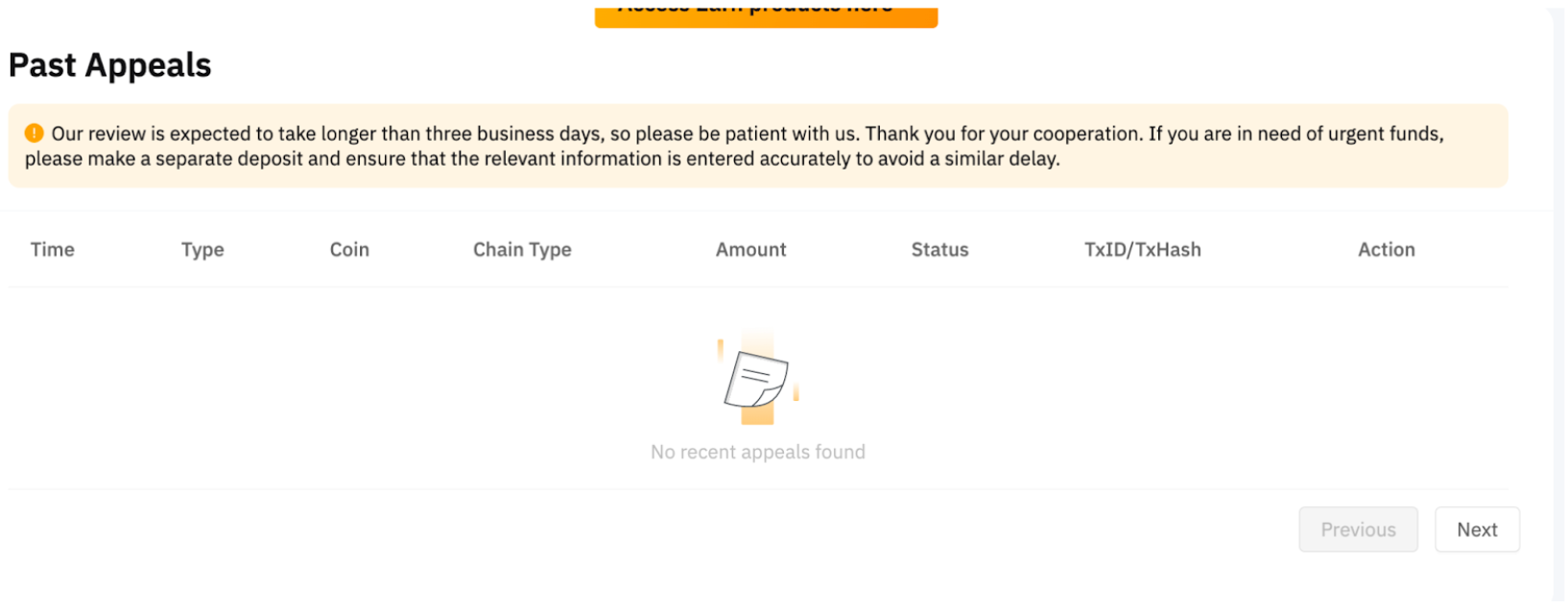
Once the refund has been approved, the coins will be credited to your Funding Account. Transaction records can be checked on Funding Account History → All Transactions with a Transfer in description.
If you have not received the result for more than 3 working days, please submit the request here. Our dedicated Customer Support will get back to you shortly.
If Your Appeal is Rejected
If your recovery application is rejected, additional information may be required to complete the appeal process. Please follow the steps below to submit the missing details to our team.
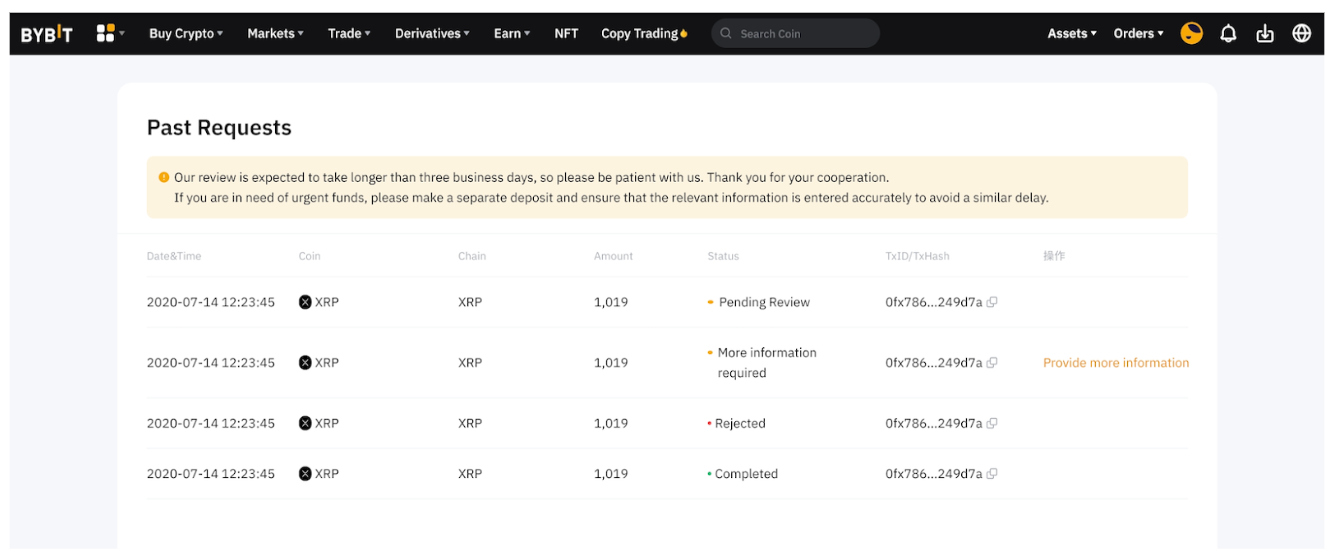
Step 1: Go to the Past Appeals page and click on “Provide more information”.
Step 2: You will be prompted to resubmit a video with the requested information. The respective solution can be found when you hover over the question mark icon.
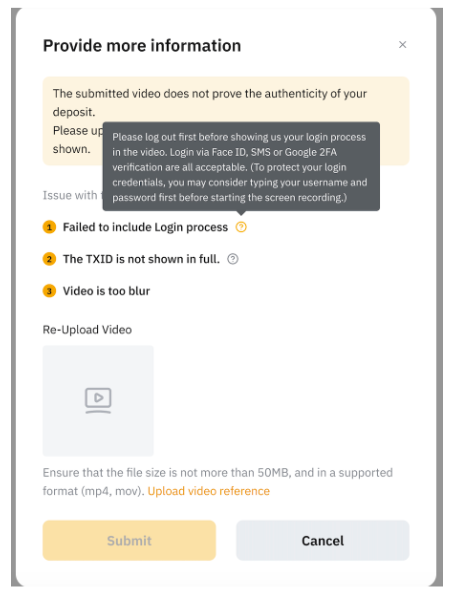
Alternatively, you may also check each of the rejection details and solutions below.
Step 3: Once you have submitted a new video, the relevant team will review your information and come back to you within the next 3 working days.
Note: Your appeal application will be closed by the system if we did not receive your new submission within the next 72 hours. Once the appeal is closed, you will need to submit a new appeal application if you intend to reopen the case. The resubmission process is the same as the steps mentioned above.