
Institutional Reporting is a self-service data exporting tool within the Bybit Institutional Portal. PRO users and Marker Makers can download and share the reports of their main accounts and subaccounts activities internally and externally if necessary.
The Bybit Institutional Portal is a centralized dashboard designed for PRO users and Market Makers to access an overview of their account profile, including total equity, fee structure, trading performance, and account reporting. Please note that the portal is currently accessible via the Bybit Institutional Portal website and is available only to PRO users and Market Makers upon request.
Notes:
- The earliest support date for each report:
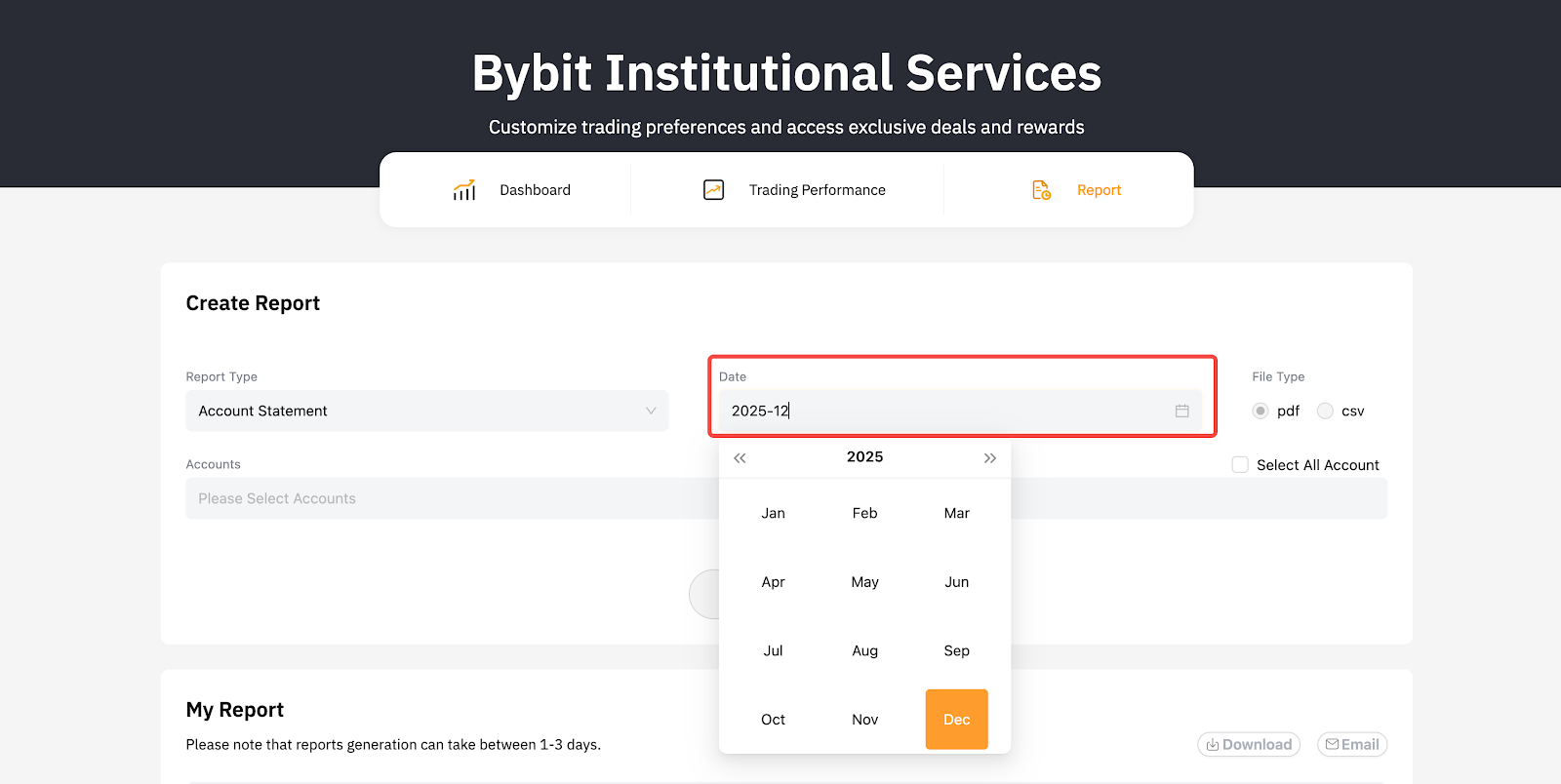
- Account Statements can only fetch data from 2023-07 onwards, until last month.
- Profit & Loss reports can only fetch data from 2021-06-26 onwards, until the day before yesterday.
- Transaction Log reports can only fetch data from 2023-07-01 onwards, until the day before yesterday.
- Deposit & Withdrawal reports can only fetch data from 2022-01-01 onwards, until the day before yesterday.
- Loan reports can only fetch data from 2022-01-01 onwards, until last month.
- The Account Statement report will show the total equity value denominated in USDT equivalent.
Types of reports supported
How to Generate Reports
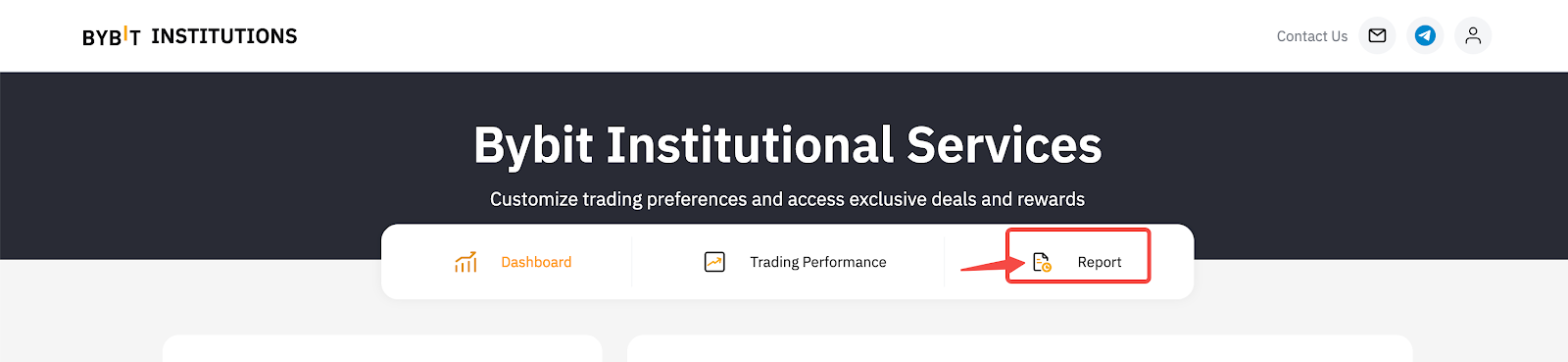
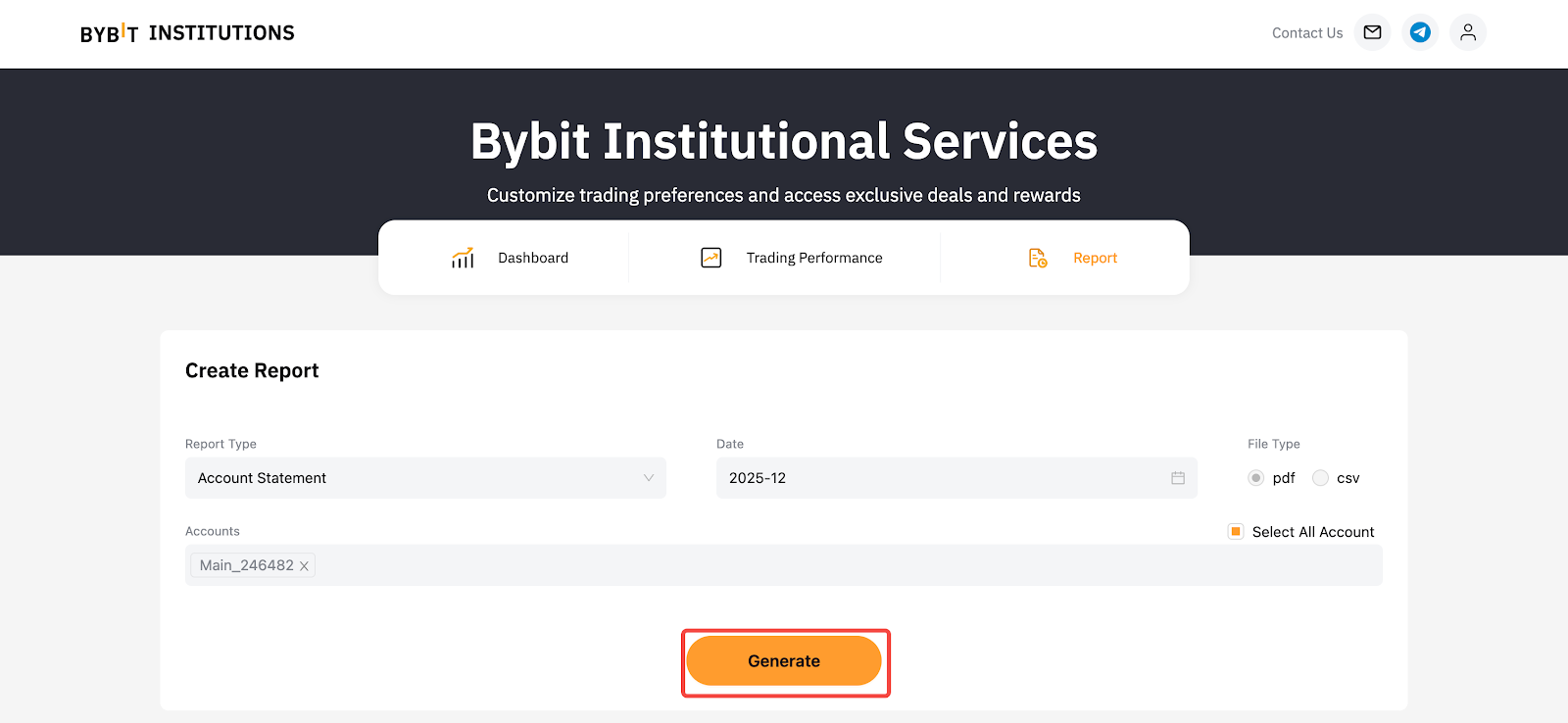
Step 1: Log into your Bybit Institutional Portal account, then click "Report".
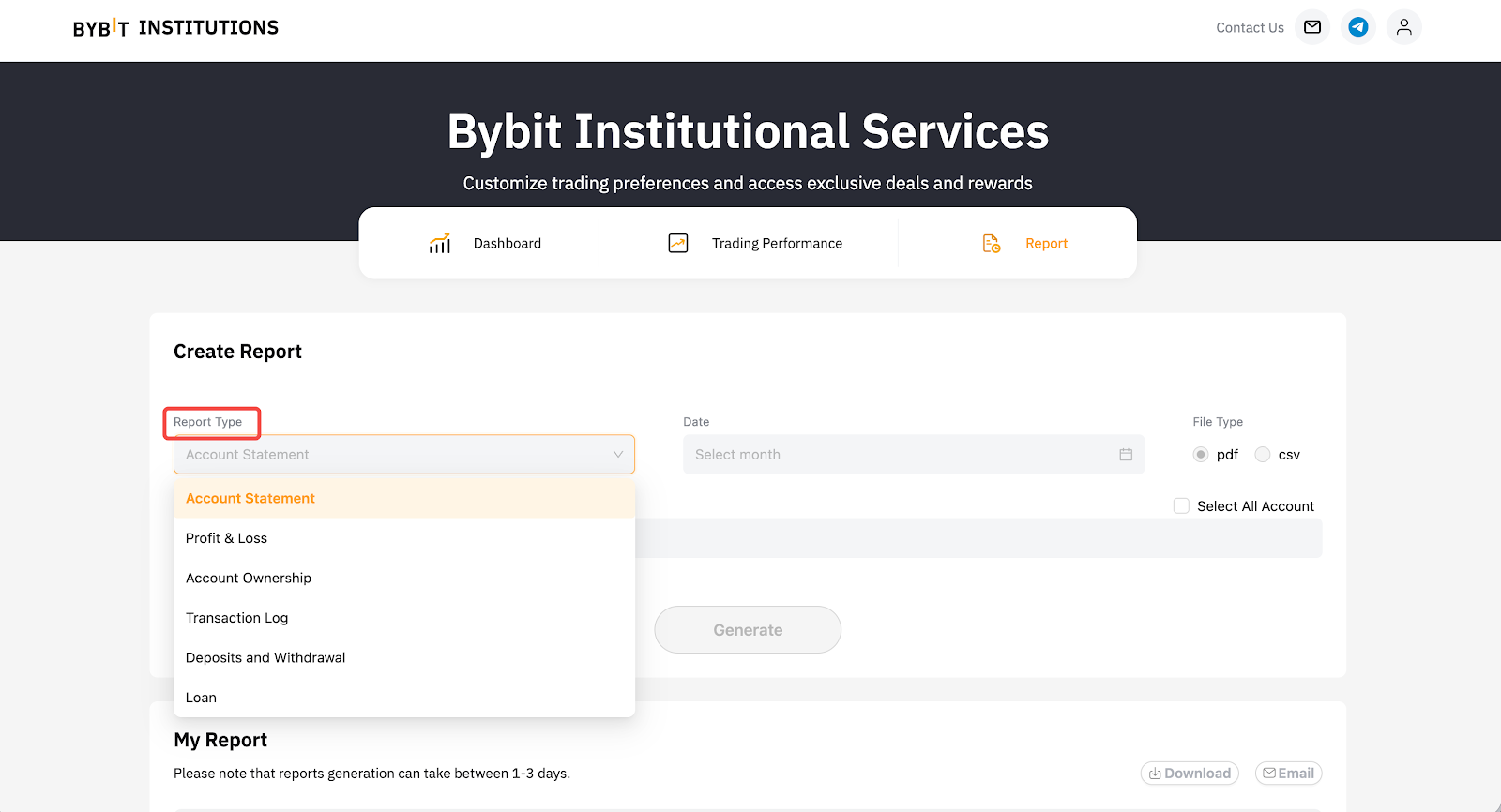
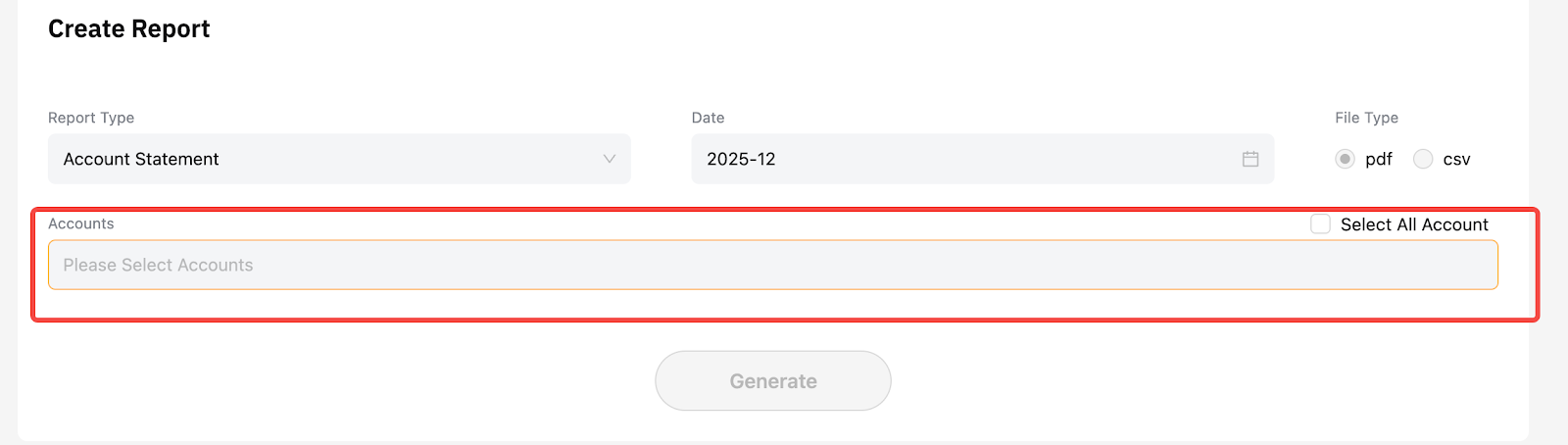
Step 2: Next, select the specification to create the report:
- Report Type
- Date
- Accounts or tick "Select All Account"
Step 3: Click "Generate" to generate the report
Notes:
- Only "Account Statement", "Account Ownership", and "Loan" reports support PDF format.
- "Account Statement" and "Loan" reports are monthly statement reports.
- "Profit & Loss", "Transaction Log", and "Deposits & Withdrawals" reports support custom time range.
- To obtain the "Account Statement" report for subaccounts, please select the main account UID corresponding to the subaccount.
How to Download Reports
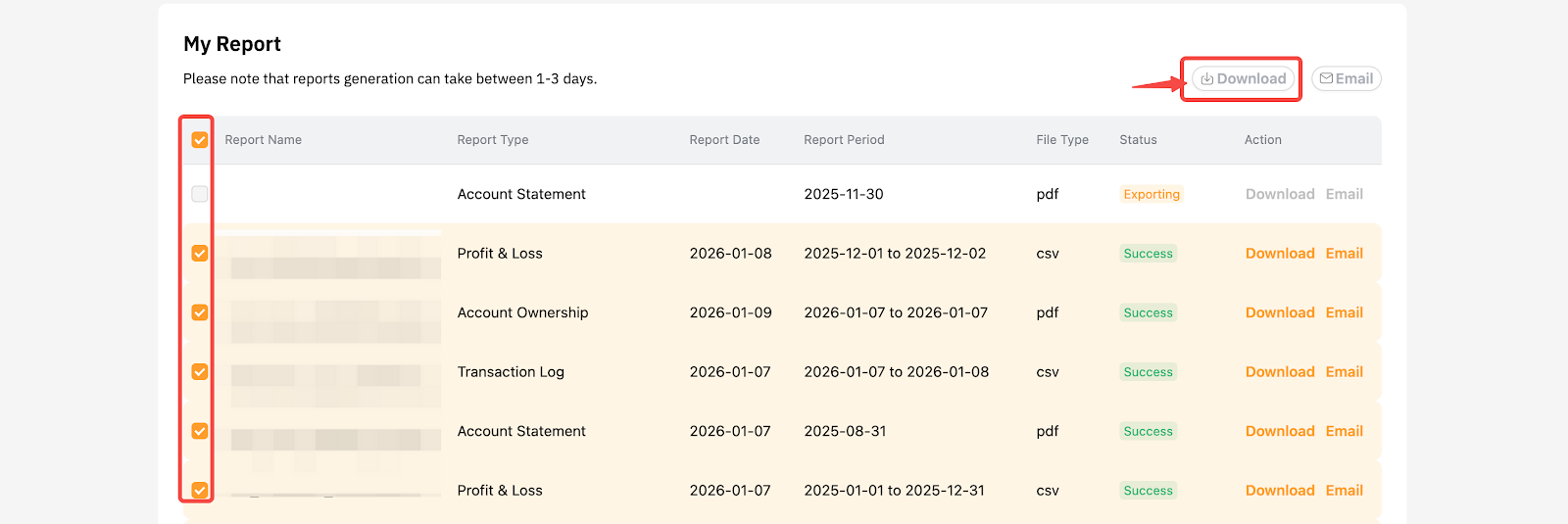
You can download reports in bulk using the batch download function.
Step 1: Under "My Report", select the report you want to download, and click "Download".
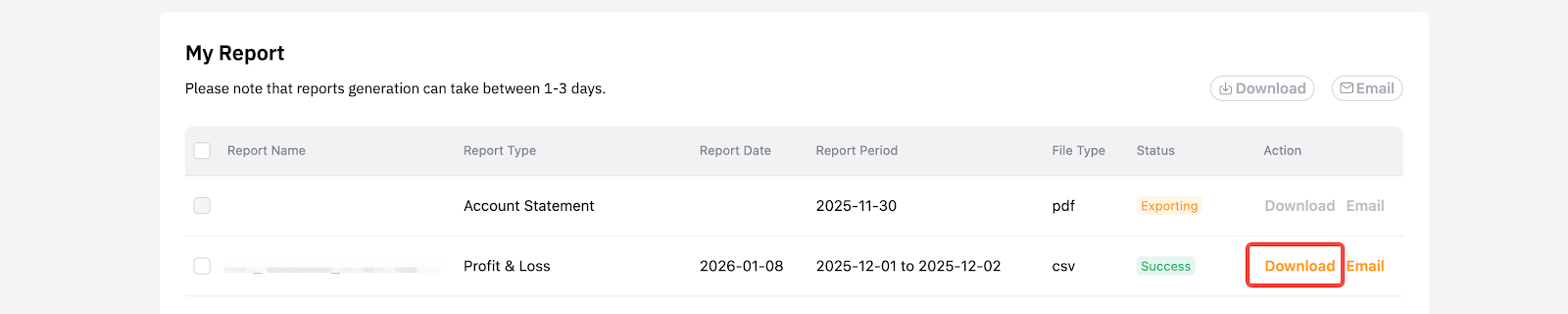
Alternatively, if you want to download your reports in a batch, you may multi-select the reports and click "Download" at the top to download selected reports.
Notes:
- You can only download/batch download the reports when the "status=success".
- The data export process will take approximately 1–3 days, depending on the file size and duration of the transaction.
- The maximum report download file size is 100 MB, after compression.
- The download link will be available for 180 days, after which you will need to regenerate the report.
How to Send Reports
You can send multiple reports in bulk using the batch send function. You can also send the reports to third-party email addresses encrypted by a password.
Step 1: Under "My Report", select the report to send, and click "Email".

Alternatively, if you want to send your reports in a batch, you may multi-select the reports and click "Email" at the top to send selected reports.
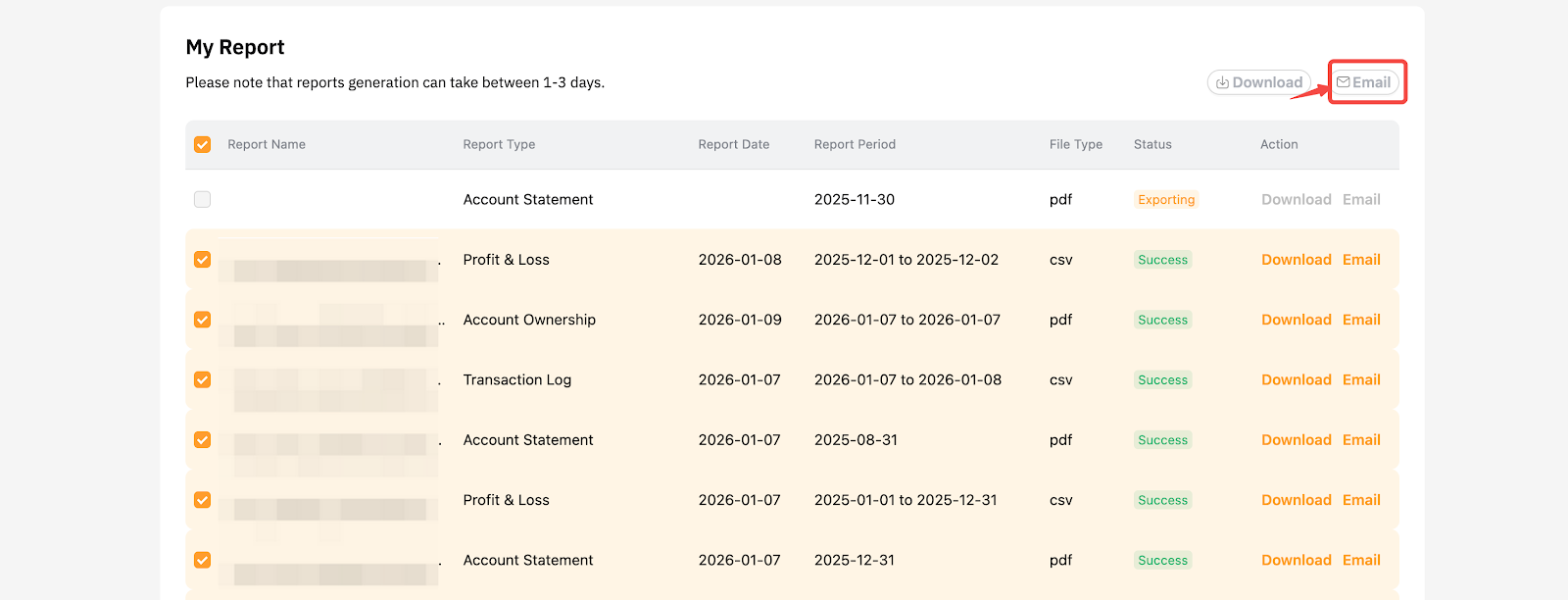
Create a password for the reports, and you may add up to 10 recipients to receive the reports.
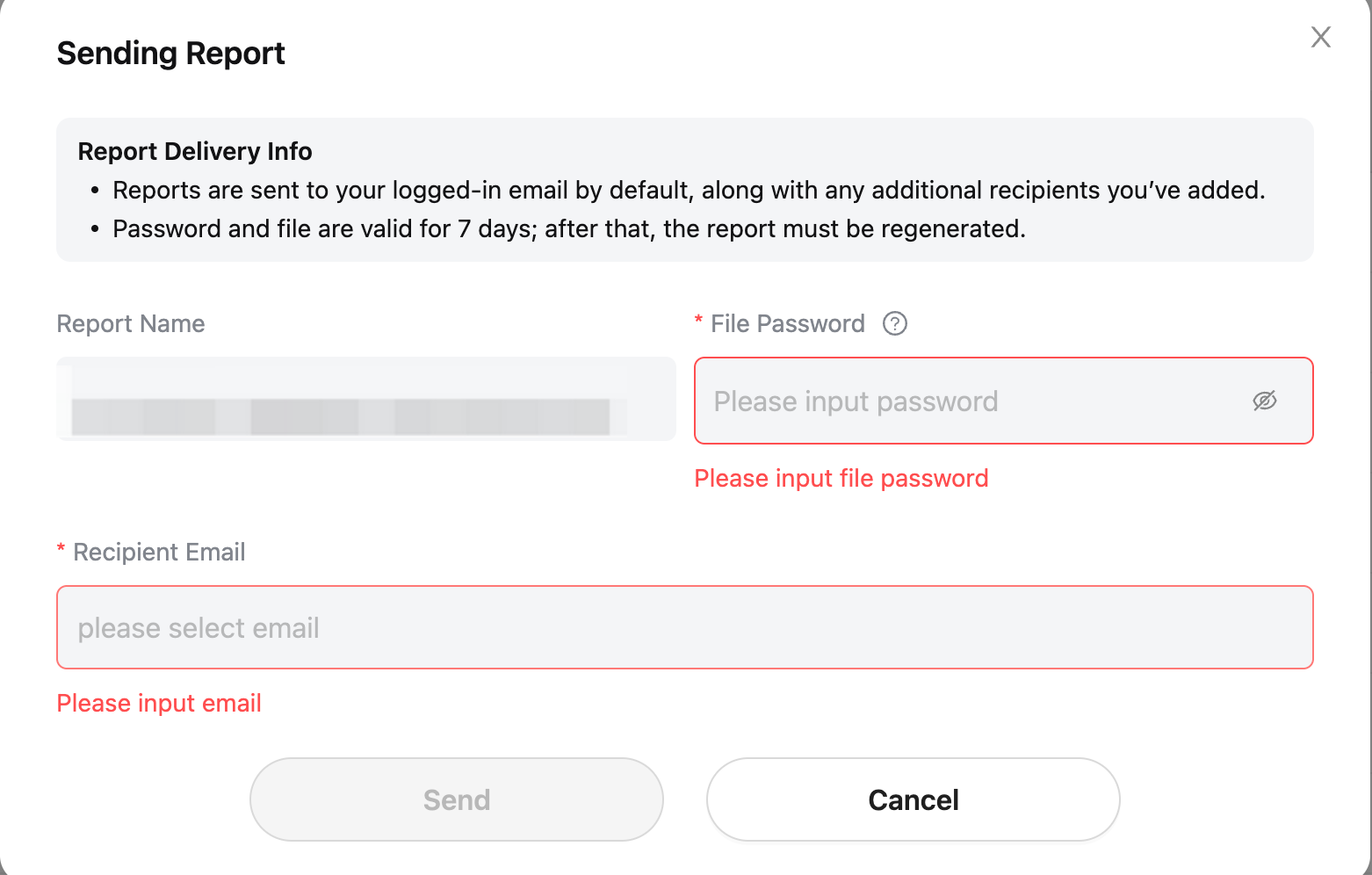
Notes:
- Reports are sent to your dashboard logged-in email by default, along with any additional recipients you have added.
- The password and file are valid for 7 days. If they expire, the report must be regenerated.
- Please ensure you have recorded the password. Bybit does not store or have access to file passwords.
Frequently Asked Questions
How can I apply for the Institutional Portal access for the Institutional Reporting?
The portal is available to PRO users and market makers only. If you are existing PRO users or market makers, please reach out to your account manager or email us at instittutional_services@bybit.com to enable access.
I am not a Bybit PRO user or market maker. Can I apply for access to the Institutional Portal?
Unfortunately, no. The portal is available to PRO users and market makers only.
How long does it take to process the data export request?
The data export process will take approximately 1–3 days, depending on the file size and duration of the transaction. Meanwhile, Account Statement takes approximately one (1) working day to generate.
What is the timezone of the exported data?
All exported data follows the UTC+0 timezone.
Is there a limit to data export from the system?
There is no limitation on data exported for supported reports. However, the email sending function allows up to 100 sends per month, 10 reports per email, and a maximum total attachment size of 8 MB or less.
Can the reports be sent to a third party email address?
By default, reports are sent to the email address associated with the Institutional Portal account. You may add up to 10 additional email addresses to receive the report, which will be encrypted with a password preset by you.
Why am I unable to download or send the report?
You can only download or send the report when the status is Success.
If the status is Failure, it means the system was unable to generate the report. This may be because the report exceeds the maximum export size or the selected timeframe exceeds the supported limit. Please try a shorter timeframe or reach out to your account manager.
I received the report via email. Why can't I open the file with the password given by the account owner?
Please ensure that you enter the correct password, as Bybit does not store or have access to report passwords. Additionally, please note that both the password and the file are valid for 7 days only, after which you will need to regenerate the report.